5.4.14. Installed apps
Different apps can be installed on the GT7 Lite with one app being operable at a time, i.e., not multiple apps simultaneously. License points are required to activate some apps, and these are available to purchase from Gantner.
When you order license points, the desired number of points are transferred to your organization in G7 Connect. You can then transfer the points in G7 Connect to the projects and respective devices as required.
Note
See the G7 Connect manual for detailed information on how to transfer license points in G7 Connect.
There are also some extensions for the apps. The extension G7 Open Card can be used to disable certificate checking on the GT7 Lite so that third-party data carriers can work with the device. G7 Open Card requires 10 license points and can be applied to apps with 0 license points.
On the Installed Apps page of the web interface, all installed apps are listed with the currently active app indicated by the green Active App text.
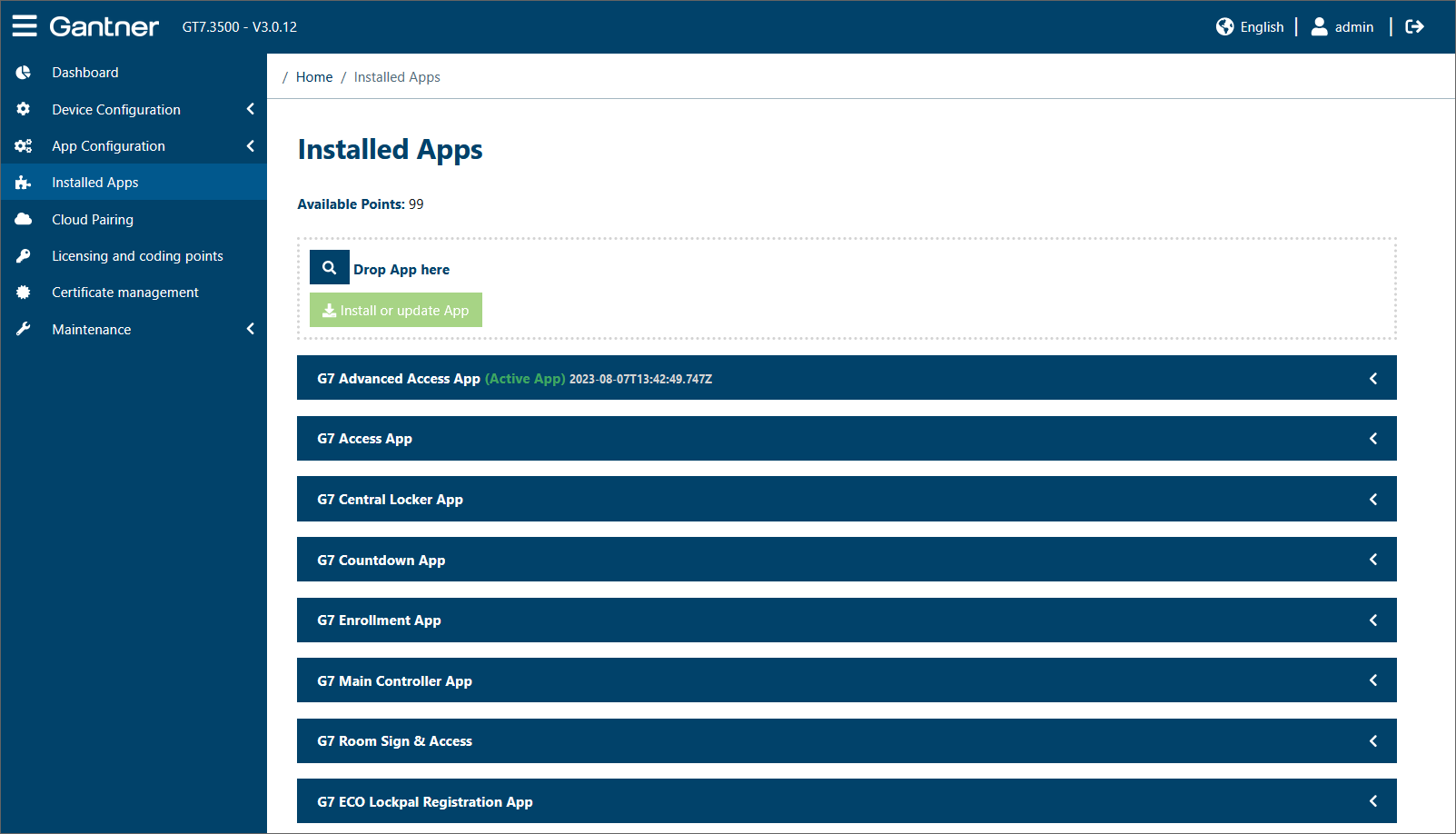
To start another app, click on the Activate button for the desired app.
↪ The app starts, which can take up to a minute, and the GT7 Lite operates according to the activated app. Only one app can be active at a time, i.e., before activating an app, the currently active app is automatically stopped.
In the upper Drop App here field, additional apps can be loaded into the GT7 Lite. To do this, the app file is needed.
An app can also be assigned a theme (Design Template). To do this, drag a theme file (ZIP file) from Windows Explorer directly into the Drop Theme here box.
Note
A theme is a template file (ZIP file) that defines the format and appearance of th app on the display (e.g., text types, colors, positions, etc.). The formatting in a theme is done using CSS, which offers a lot of freedom in the design of the themes. In addition, a theme archive may contain images that can be viewed using the screensaver function. The images are located in the archive file of the screensaver sub-folder.