5.4.17. Certificate management
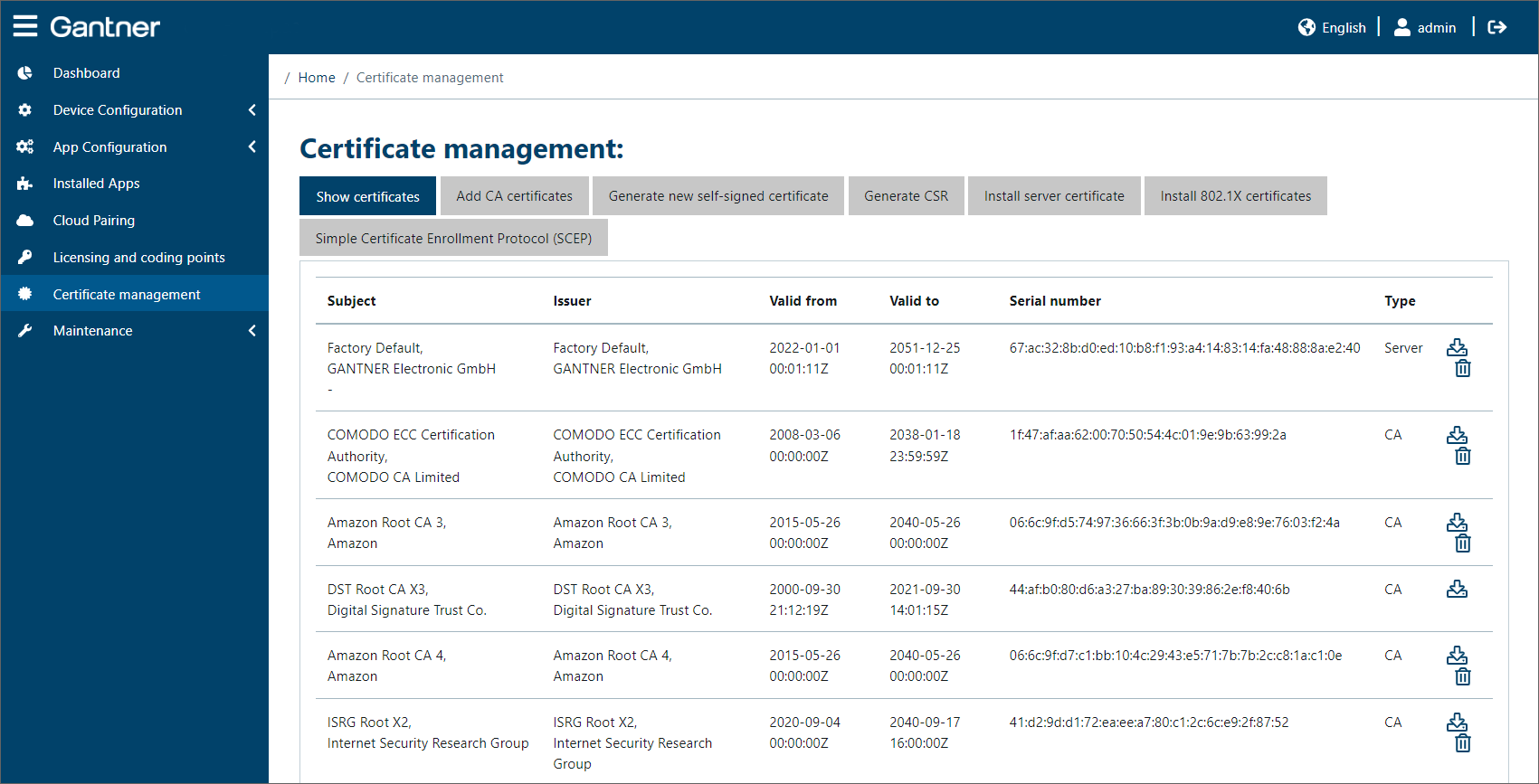
The certificates stored in the GT7 Lite are displayed on this page. The certificates are used to verify the authenticity and integrity of persons and/or objects, especially when communicating over the Internet or network, which can prevent unauthorized access and manipulation.
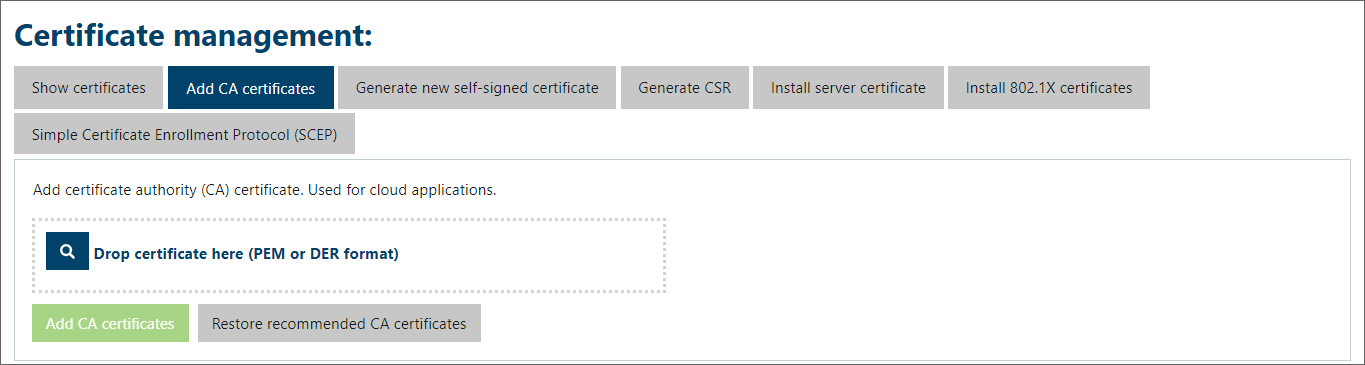
Various options are displayed above the list. Click on the Show certificates option to display the installed certificates. To add a new certificate, simply drag the certificate file (file extension .PEM) to the Drop certificate here (PEM format) field in the corresponding window (depending on the selected function, e.g. Add CA certificates like in the image above).
The following functions can be performed via the other options in this menu.
Simple Certificate Enrollment Protocol (SCEP): Certificates using the Simple Certificate Enrollment Protocol (SCEP) can be installed here. The following window is displayed:
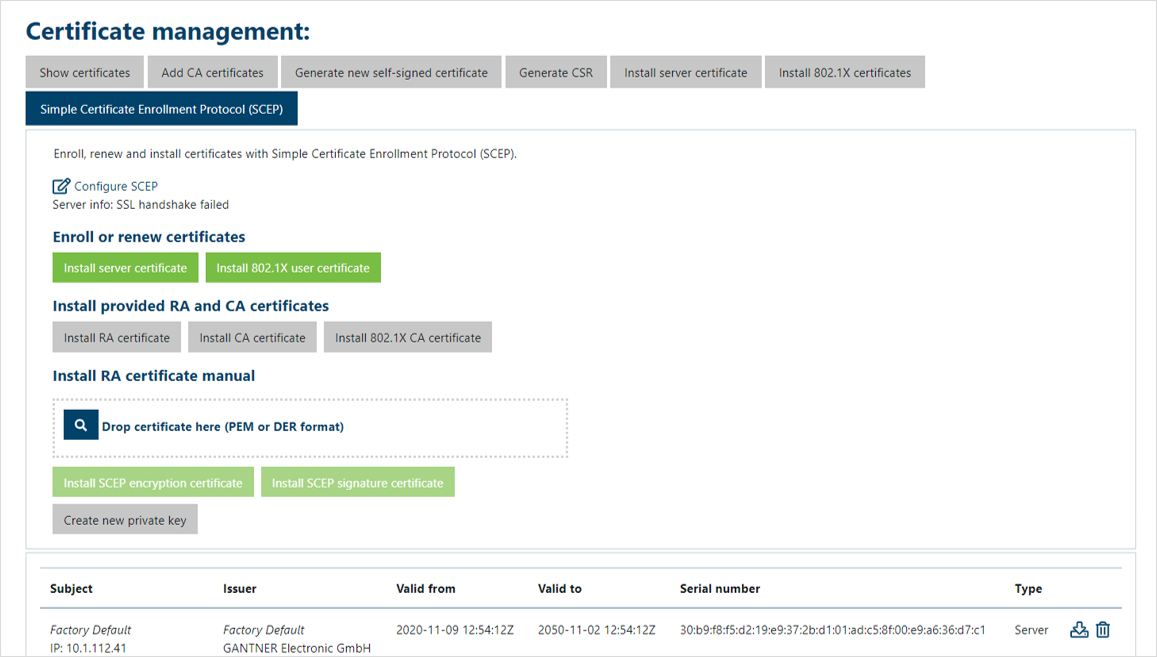
Below the Configuring SCEP link, the status of the SCEP connection (“Server Info”) is displayed. If “Disabled” is shown here, the SCEP function is not activated. If the SCEP function is enabled, a server notification is displayed, e.g., “Enabled” indicates a successful connection or “Host not found” if the server connection could not be established.
To enable SCEP and configure the server connection, click on the Configure SCEP link.
↪ This takes you directly to the SCEP configuration page in the device configuration menu. See chapter "SCEP”. for more information. If SCEP is enabled and the connection to the SCEP server is active, you can perform the following actions:
 If the GT7 Lite is operated as a web server (e.g. when using the eLoxx Relaxx software, which acts as a “client” and establishes the connection to the “server” GT7 Lite, a certificate is required for the server, i.e. on the GT7 Lite, for a secure connection using TLS. You can complete the installation by clicking on this button.
 Here you can install a certificate for authentication via 802.1X.
 Here you can install a certificate issued by a registration authority (RA).
 Here you can install a certificate issued by a certification authority (CA).
 This button allows you to install an official certificate from a certification authority for authentication using 802.1X.
The certificates (encryption and signature) for the registration authority (RA) can also be manually installed from a file without using the SCEP server. This can be done in the Installing RA certificate manual section.
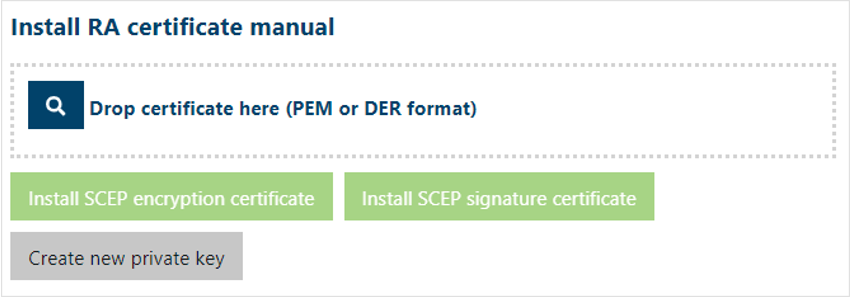
Drag the file with the certificate into the dotted field and click on Installing SCEP encryption certificate or Install SCEP signature certificate.