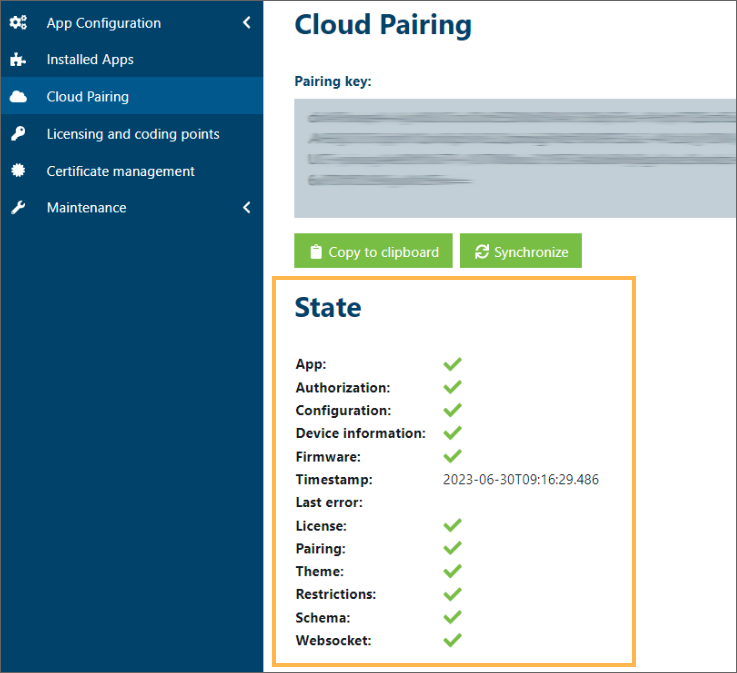
5.4.15. Cloud pairing
G7 Connect is Gantner's online platform that allows you to configure and manage all your G7 devices in one convenient location.
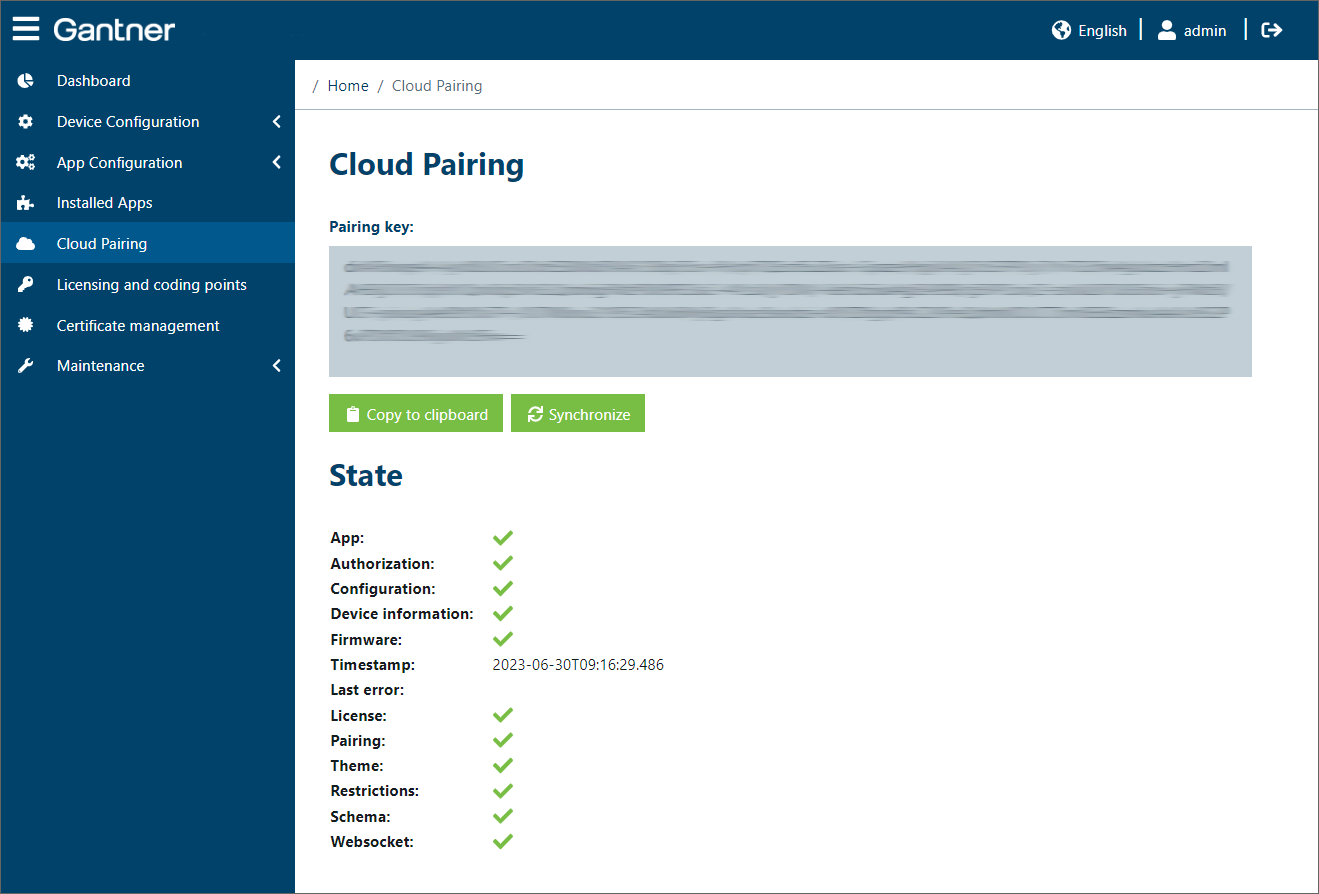
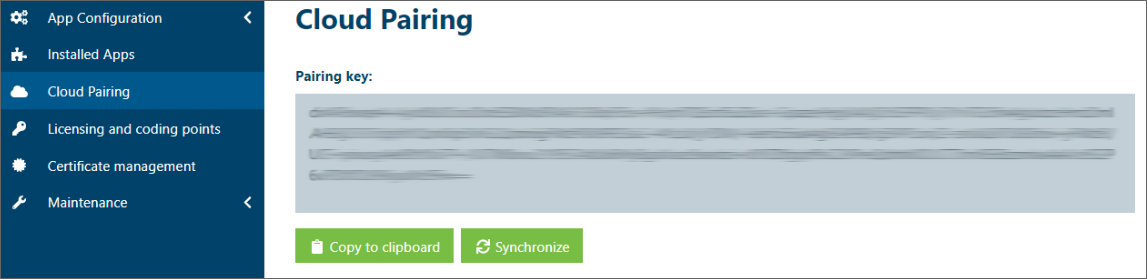
To add a GT7 Lite to a project in G7 Connect, the device must be paired with G7 Connect once. This process requires a pairing key, which is displayed on this page.
To open G7 Connect in your default web browser, click on the link: G7 Connect, and log in with your username and password.
Note
See the G7 Connect manual for information on creating an account.
↪ The G7 Connect dashboard is displayed.
Click on Projects in the sidebar.
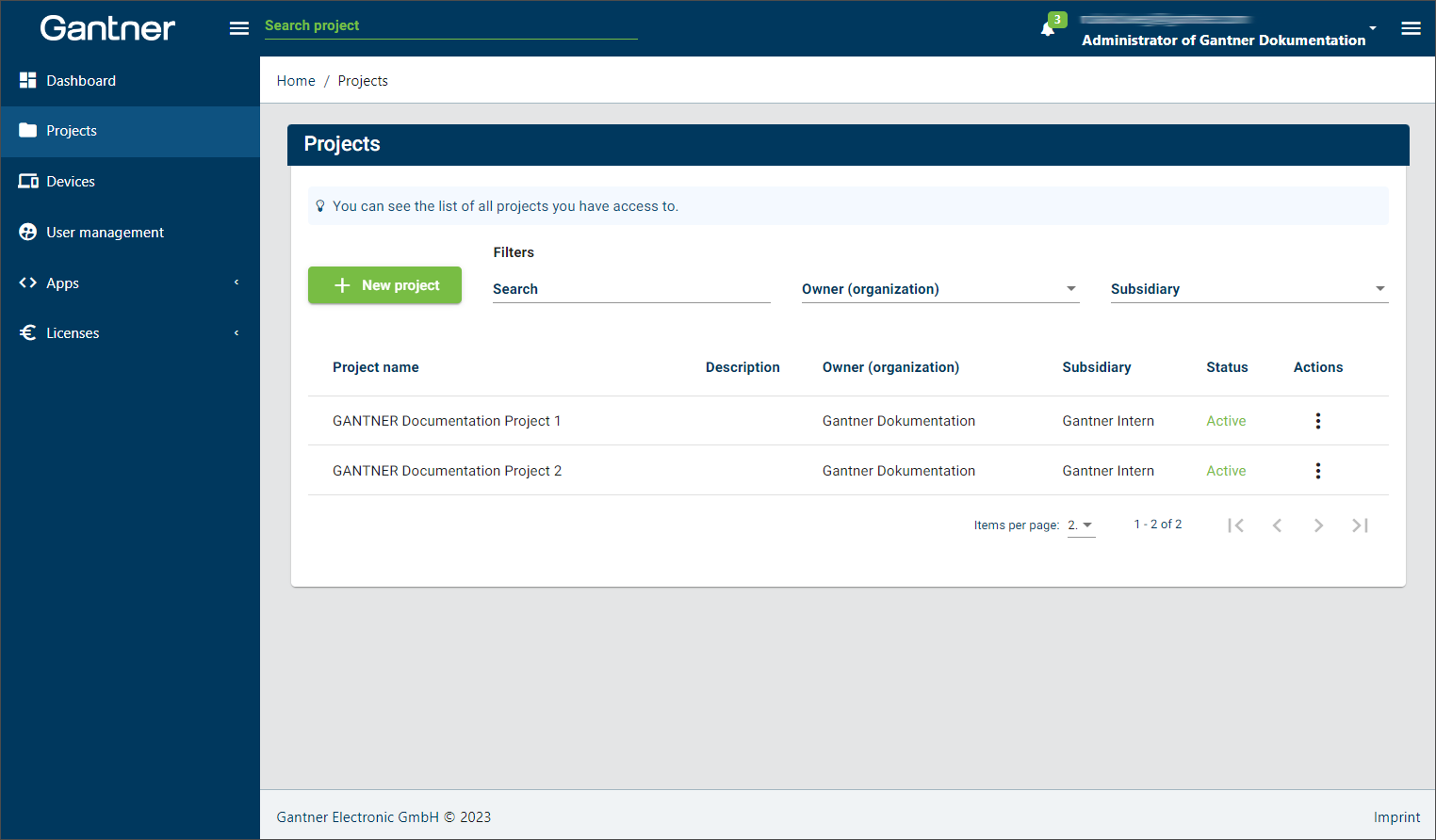
Click on the project that you want to assign the device to.
↪ The project dashboard is displayed. The selected project is displayed above the menu on the left.
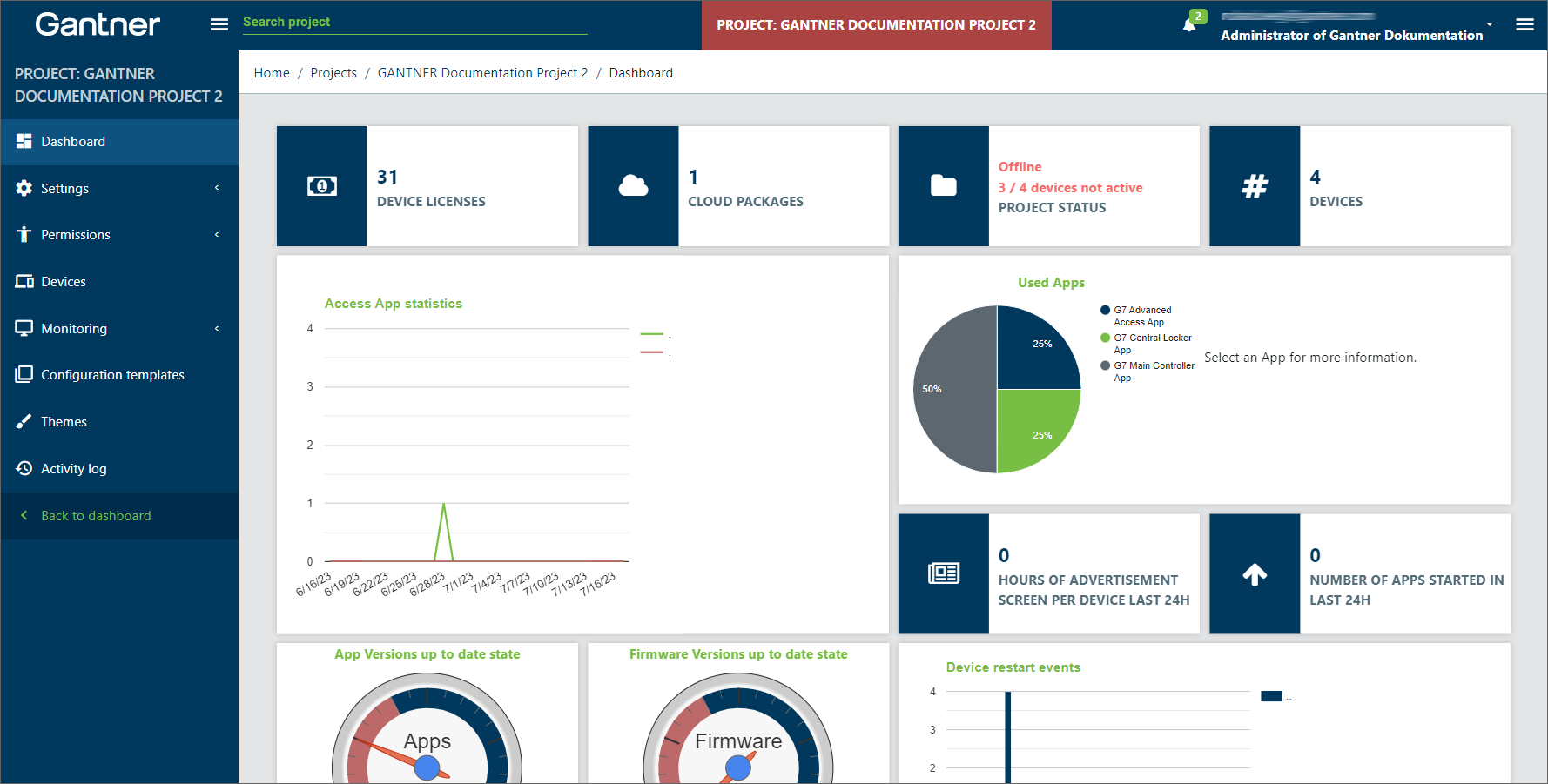
Click on Devices in the sidebar.
↪ The devices already assigned to the project are displayed.
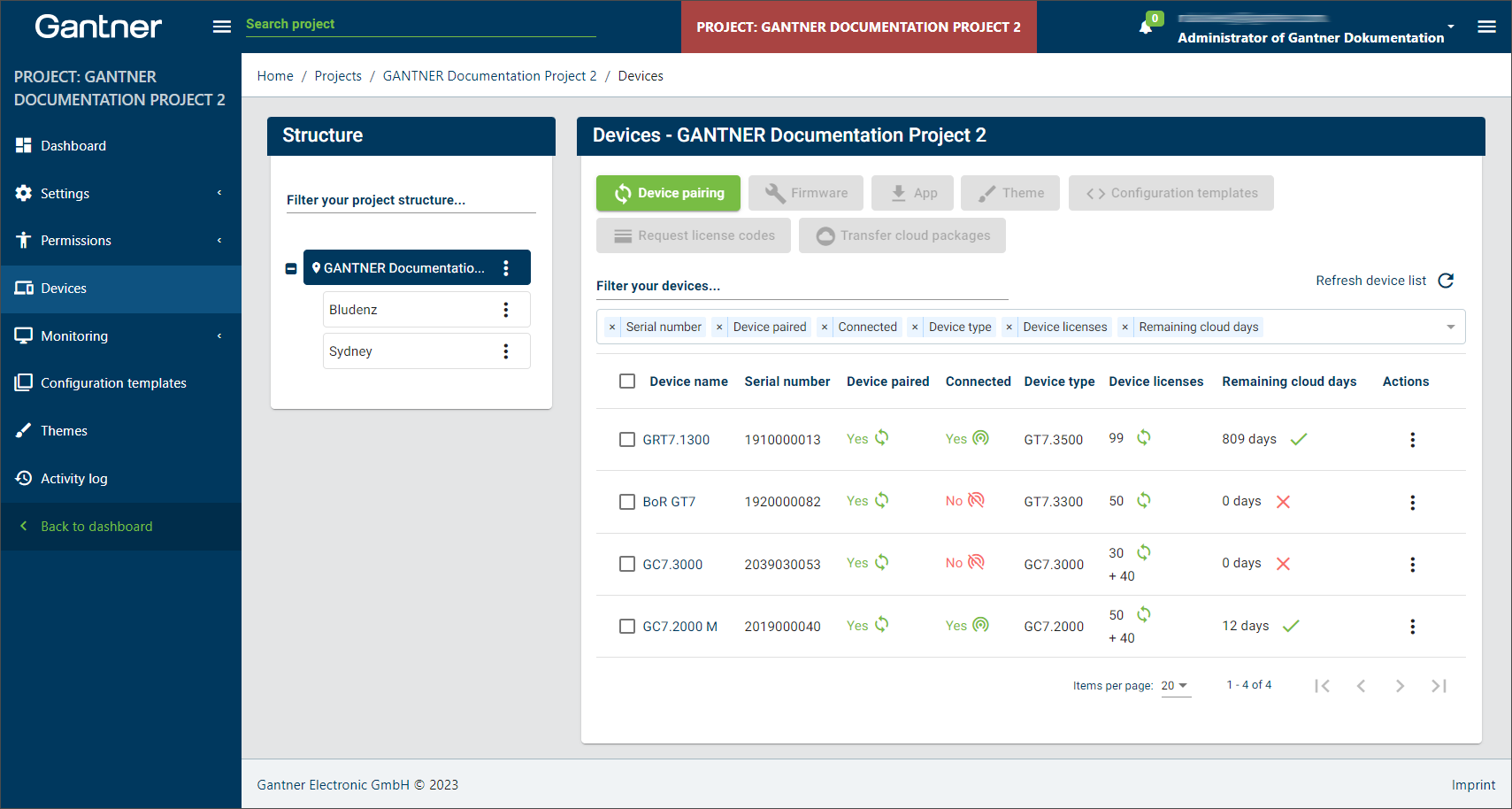
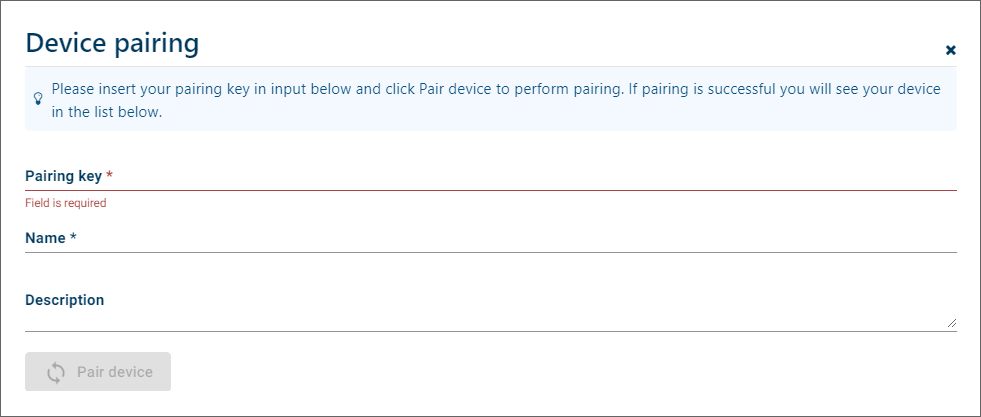
Click on the Device pairing button.
↪ The Device pairing window opens.
On the Cloud pairing page of the the web interface, copy the Pairing key.
In the Device pairing window of G7 Connect, paste the Pairing key into the respective field. Enter a name for the device, which can be selected freely. You can also enter an optional descriptive text in the Description field.
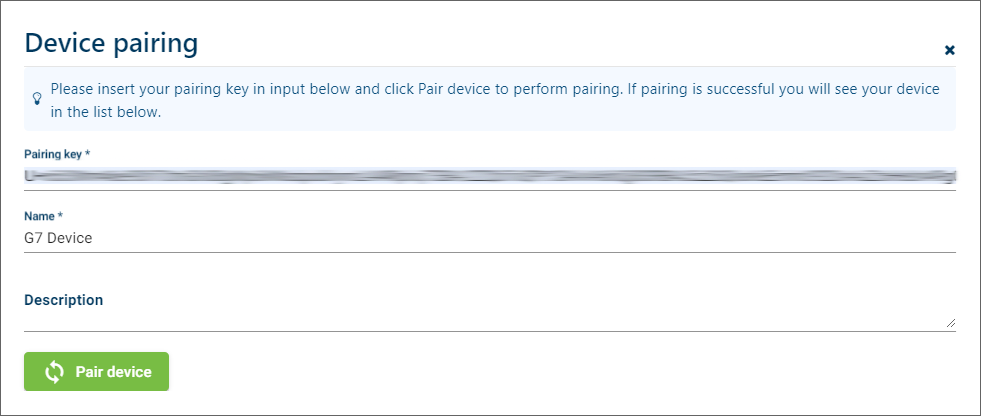
Click on Pair device.
The device attempts to establish an outgoing connection to G7 Connect via the Internet. The device must therefore be switched on and connected to the Internet (G7 Connect). Check the connections and firewall settings if pairing and synchronization does not work.
When the device is found, it is displayed in the devices list of the project.
In the web interface, the status of the pairing process is displayed. After pairing is completed, the different states are displayed to indicate whether an update is required.