5.4.21. Maintenance
The Maintenance menu gives access to different options for checking the status of the device and perfoming maintenance tasks like firmware update or evaluating recorded log entries. The mainenance menu options are usually not required during regular operation and are intended for service personnel.
Select the different sub menu items for more information on the available functions.
Device
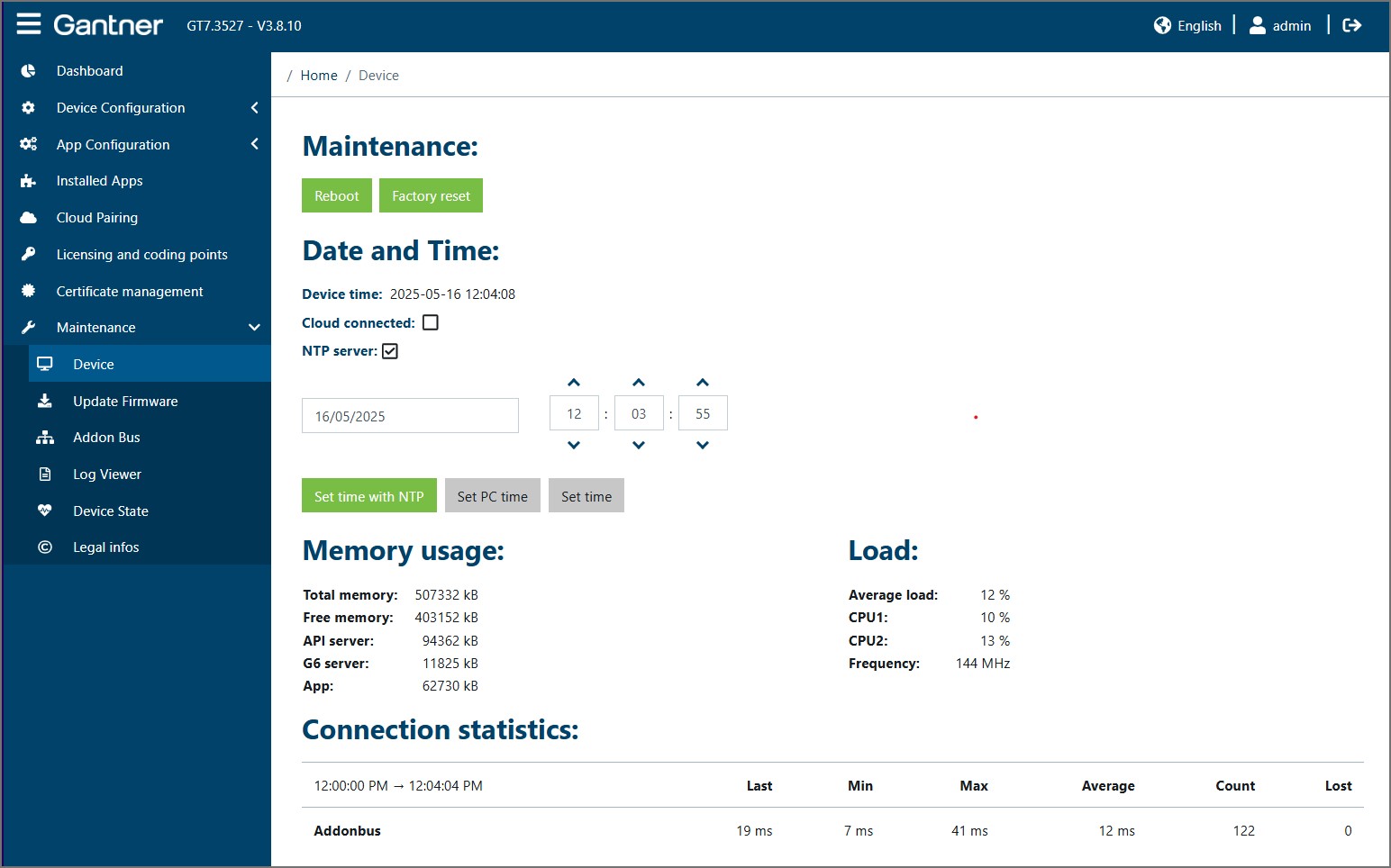
The following settings and information are available on this page.
Maintenance
Reboot: Click on this button to restart the device. The web interface remains connected to the device and further work can be completed in the web interface after the restart is completed.
Factory reset: Click on this button to reset the device to its default settings.
Notice
All settings in the device are deleted during the reset process. After the reset, the device is in same functional state it was upon delivery.
Date and time
Device time: The current time in the device is displayed here. This time is updated every second. Go to Device Configuration > Time to configure the time settings.
Cloud connected: A tick in this checkbox indicates that the device is paired with G7 Connect. Go to Device Configuration > G7 Connect to configure these settings.
NTP server: A tick in this checkbox indicates that the device is using an NTP server to automatically synchronize the time. Go to Device Configuration > Time to configure the time settings.
To reset the time in the device, select one of the following options:
Set time with NTP: The time is automatically obtained from an NTP server in the network. Go to Device Configuration > Time to define the address of the server.
Set PC time: The current time of the PC being used to configure the device is used.
Set time: You can manually enter a time and date into the input fields. After clicking on the Set time button, the entered values for the time and date are set in the device.
Memory usage / Load
Information about the memory in the device, i.e., the total memory, free space, and memory used by each component, is shown here.
Shown in the load section is information on the current load and clock frequency of the CPUs. These values indicate how much the processor cores are being used and are mainly relevant for service personnel. If the average load is at a high value (>90%), an operation is using a lot of computing time and the device should be restarted.
Connection statistics
Displayed here are the connection statistics of the system components that interface with the GT7.3x27.
Update firmware

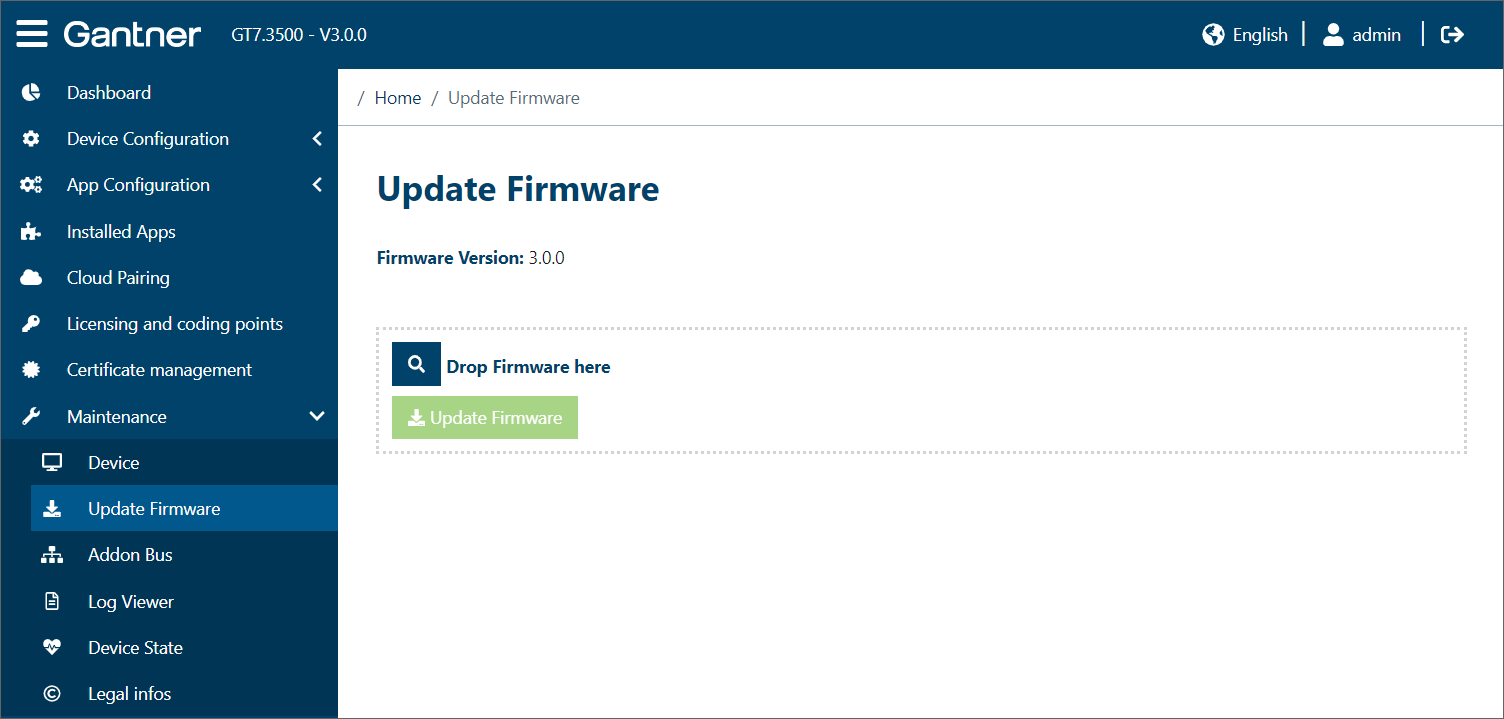
The firmware currently installed in the device is displayed here.
To update the firmware, drag the firmware file onto the Drop firmware here field.
Notice
During the firmware update, ensure that the power supply to the device is not disconnected.
Click on Update Firmware.
The new firmware is uploaded and the device restarts.
Addon bus

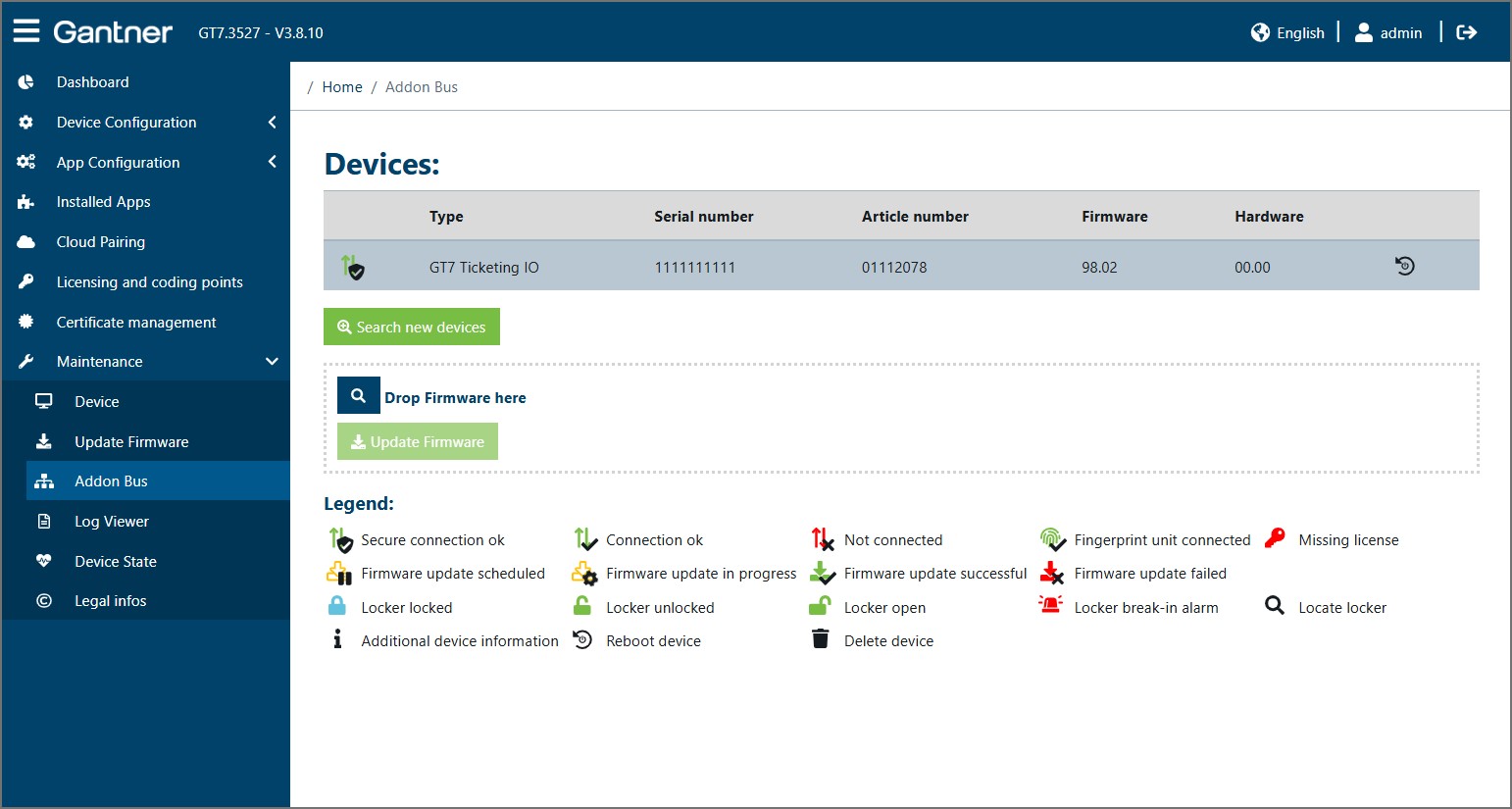
Information about the external devices connected to the GT7.3x27 via the expansion bus are displayed here.
If a new device such as a reader is connected to the GT7.3x27, it is not automatically displayed in the list. Click on Search new devices to search for and display all devices.
A reader that is no longer connected to the device can be deleted by clicking on the trash can icon.
You can change the numbering of a reader by clicking in the Number column.
To install a new firmware for these devices, drag the firmware file to the Drop Firmware here field, then click on Update Firmware.
↪ The new firmware is uploaded to all connected devices of the corresponding type and the devices are restarted.
Notice
During the firmware update, ensure that the power supply to the device is not disconnected.
Log viewer

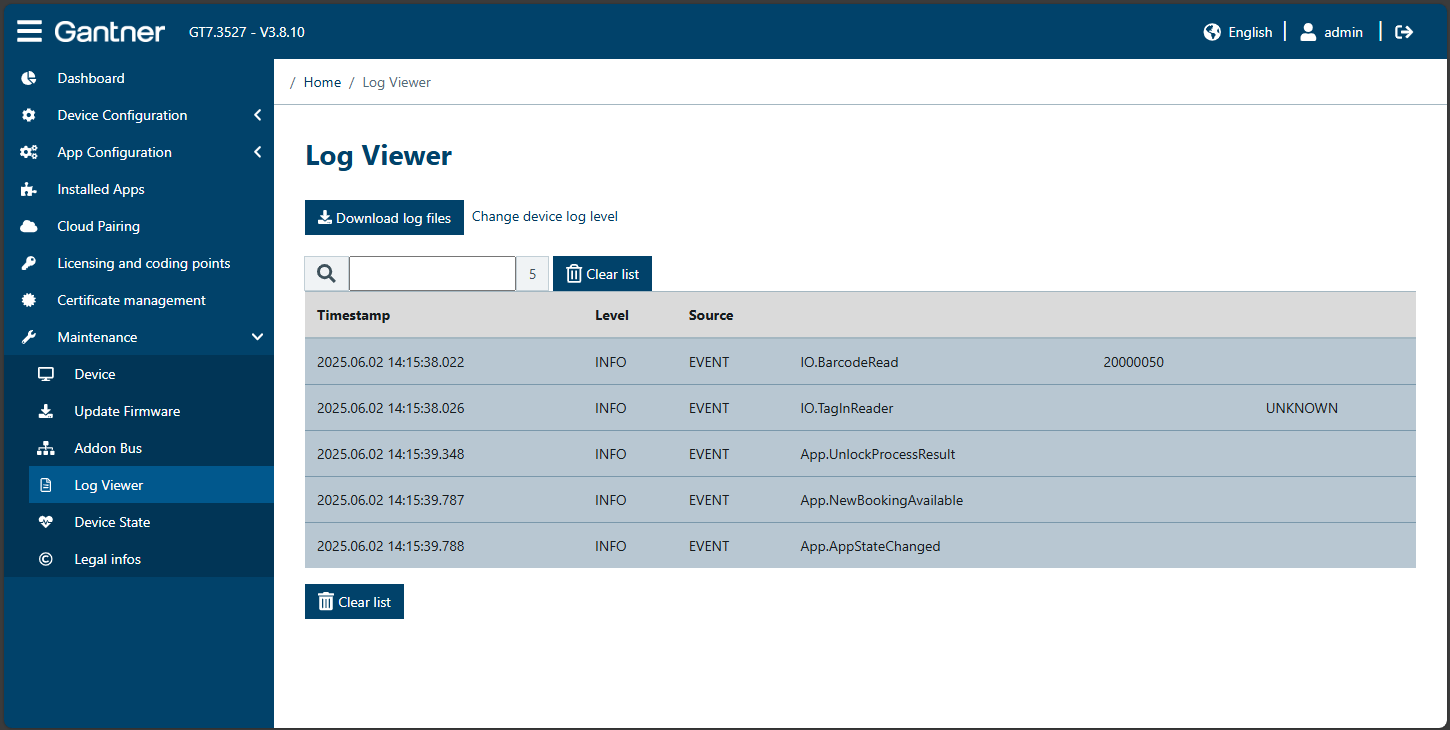
All events and error messages are stored in the GT7.3x27 as log files. The stored log files can be loaded from the device to the PC (file format = .csv). If the Log Viewer page is open, all currently occurring events are displayed live. If you close the Log Viewer page and then reopen it, the display of live events is restarted. However, the events are always recorded and can be downloaded at any time.
To load the log files from the device, click on Download log files.
↪ The log files from the previous 8 days are transferred to a compressed file (GZ) and automatically downloaded to the Downloads folder of your web browser.
Click on Change device log level to open the device settings. Here you can change the log level, which defines the types of events that are displayed in the live view (e.g., all info + warnings or only errors, etc.). For more information see "Device configuration".
If you want to delete the displayed log entries to start a fresh session, click on Clear list.
Device state

Hardware state
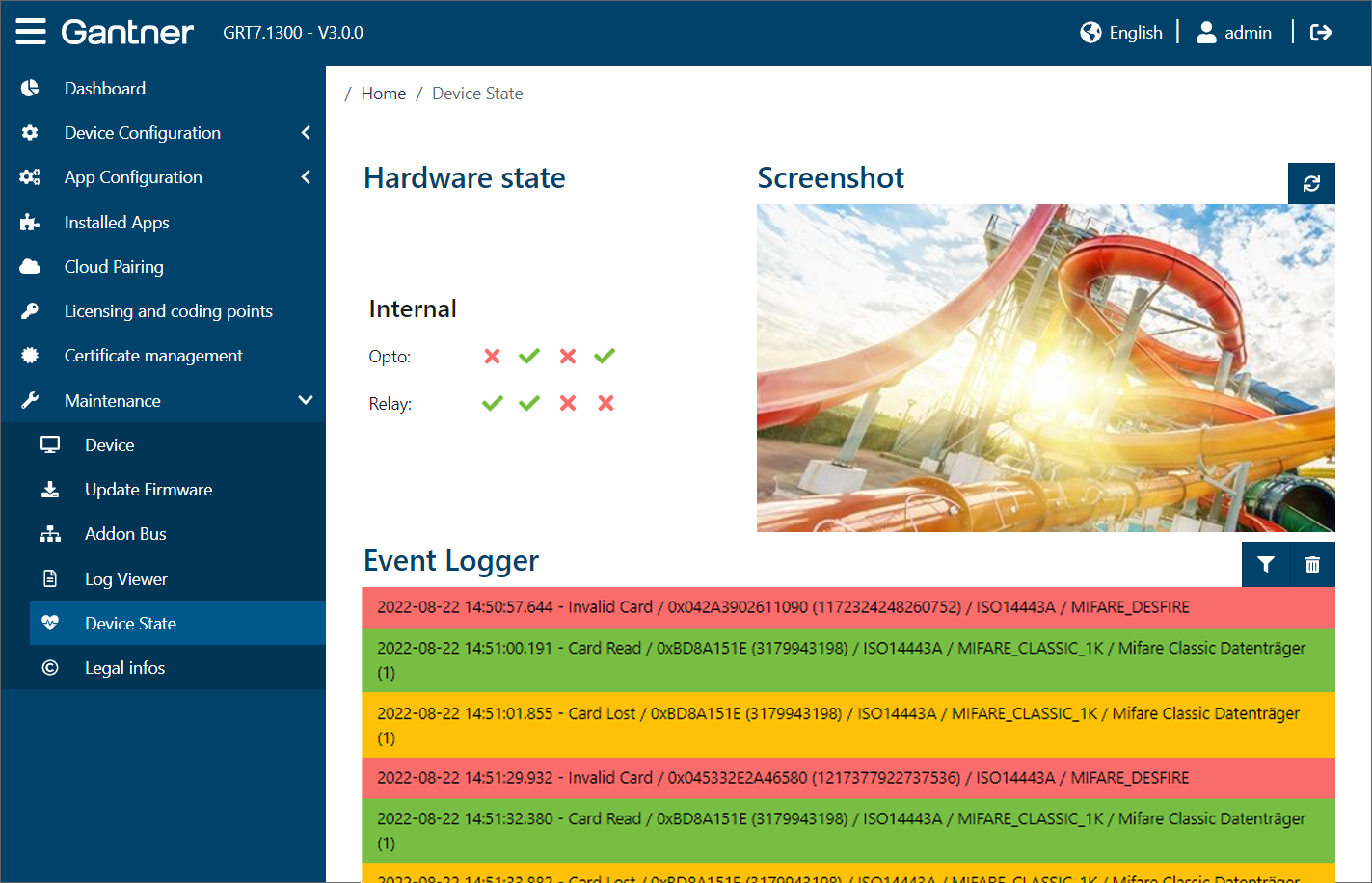
Shown here is the state of the relay outputs and optocoupler inputs of the device, which can be used to receive status information and/or for control. A green tick indicates that the input/output is being used. The number of inputs and outputs available depends on the type of device (see technical data).
Screenshot
This image shows a screenshot of the currently displayed screen on the device display.
To show the screen that is currently displayed on the device, click the refresh
button.↪ The refresh button turns green and the screen is automatically updated every second.
When the live update shall be stopped, click again on the button.
↪ The refresh button turns blue and the image shows the screen, that was displayed when the button was clicked. This image will not be updates until the refresh button is activated again.
Event logger
When an event occurs at the device (e.g., data carrier read) or when the optocoupler input state or one of the relay states changes, a corresponding entry is displayed.
The live events occurring at the device are listed here. To clear the list, click on the trash can icon.
The filter icon displays all event types. By clicking on an event you can switch between active (green) and inactive (red). Only the active events are displayed in the list.
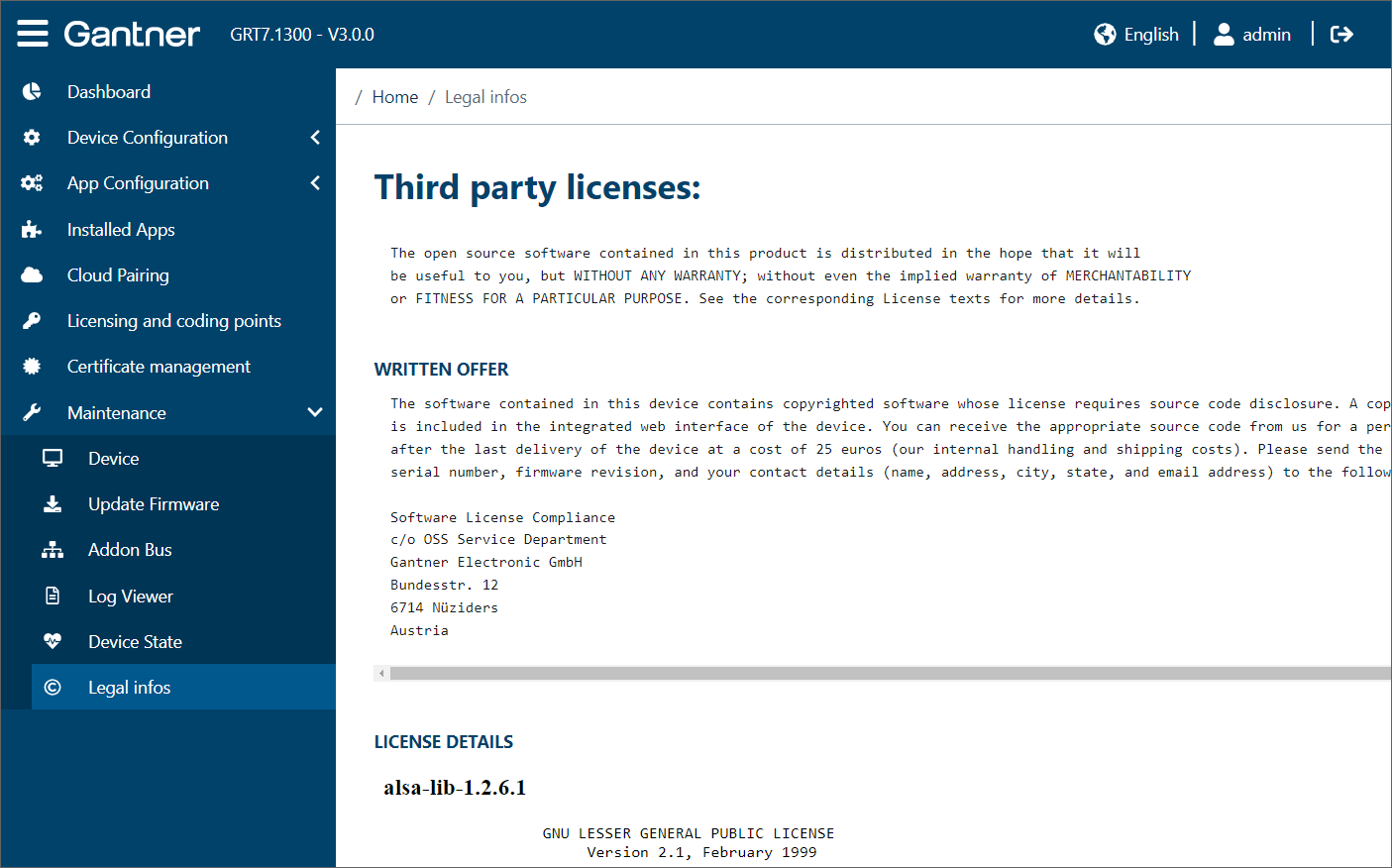
Legal information

Displayed here is the license information for the third-party software included with the GT7.3x27. For example, the GNU license information for the operating system in the device.