5.3.2. Device information
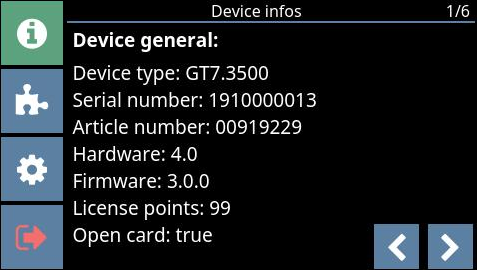 |
General device information is displayed on the sub-pages of this menu. Most of the settings shown here can be configured via the device configuration page.
Device type: The type/model of the terminal.
Hardware / Firmware: The version of the hardware / firmware installed in the device.
License points: License points are required to activate certain G7 apps and enable other features. License points can be purchased from Gantner. The available license points are displayed here.
Open card: If true is shown here, the terminal can read the UID number of third-party data carriers, i.e., those not supplied by Gantner. To activate this function, the product G7 Device License Points Open Card must be purchased and the license code entered into the web interface.
Ethernet
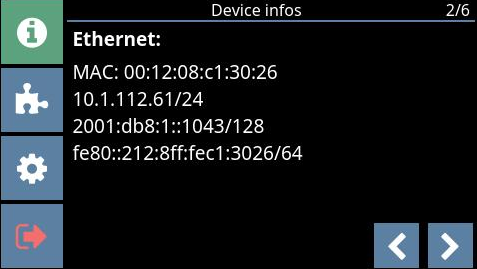 |
MAC: The MAC address of the device.
IP: The IP address of the device. The first line shows the IPv4 address. If IPv6 is enabled (possible via configuration menu or web interface), the IPv6 address is also displayed in the second line.
WLAN
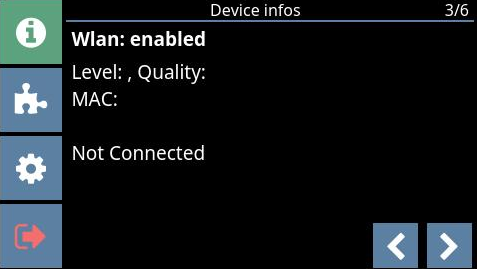 |
Here you can see whether the WLAN connection is enabled or disabled. If enabled, you can also see the quality of the WLAN signal and the MAC address.
Network routing
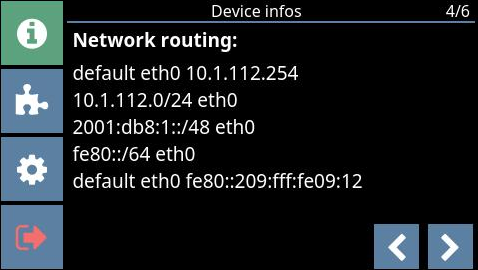 |
Here you can see the routing settings for the network connection. The top two lines show the information for the IPv4 settings. The settings for IPv6 are shown below if IPv6 has been enabled in the settings. These settings are assigned automatically and cannot be changed.
Status
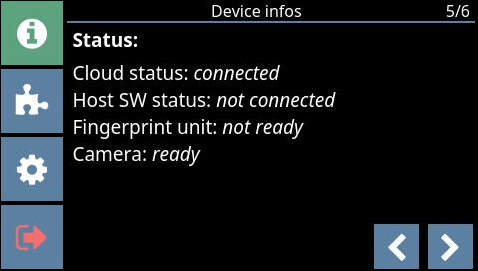 |
Cloud status: If connected is shown here, the connection to G7 Connect is functioning.
Host SW status: If connected is shown here, the connection to the host software (e.g., locker management software) is functioning. The text “not connected” means that there is no connection to any host software.
Fingerprint unit / Camera: If ready is shown in these fields, the fingerprint reader/integrated camera (if applicable) of the terminal is ready for operation.
RFID reader test
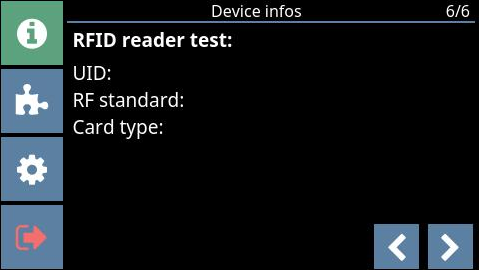 |
On this page you can use the RFID reader to display the UID number, the used RFID technology, and the type of a data carrier.
Hold a data carrier next to the reading field (LED ring) of the GT7.3x27.
↪ The data carrier is read, and the respective data is displayed in the UID, RF standard, and Card type fields.