4.2. Interface of eLoxx One
After logging in with a username and password, a system overview is displayed.
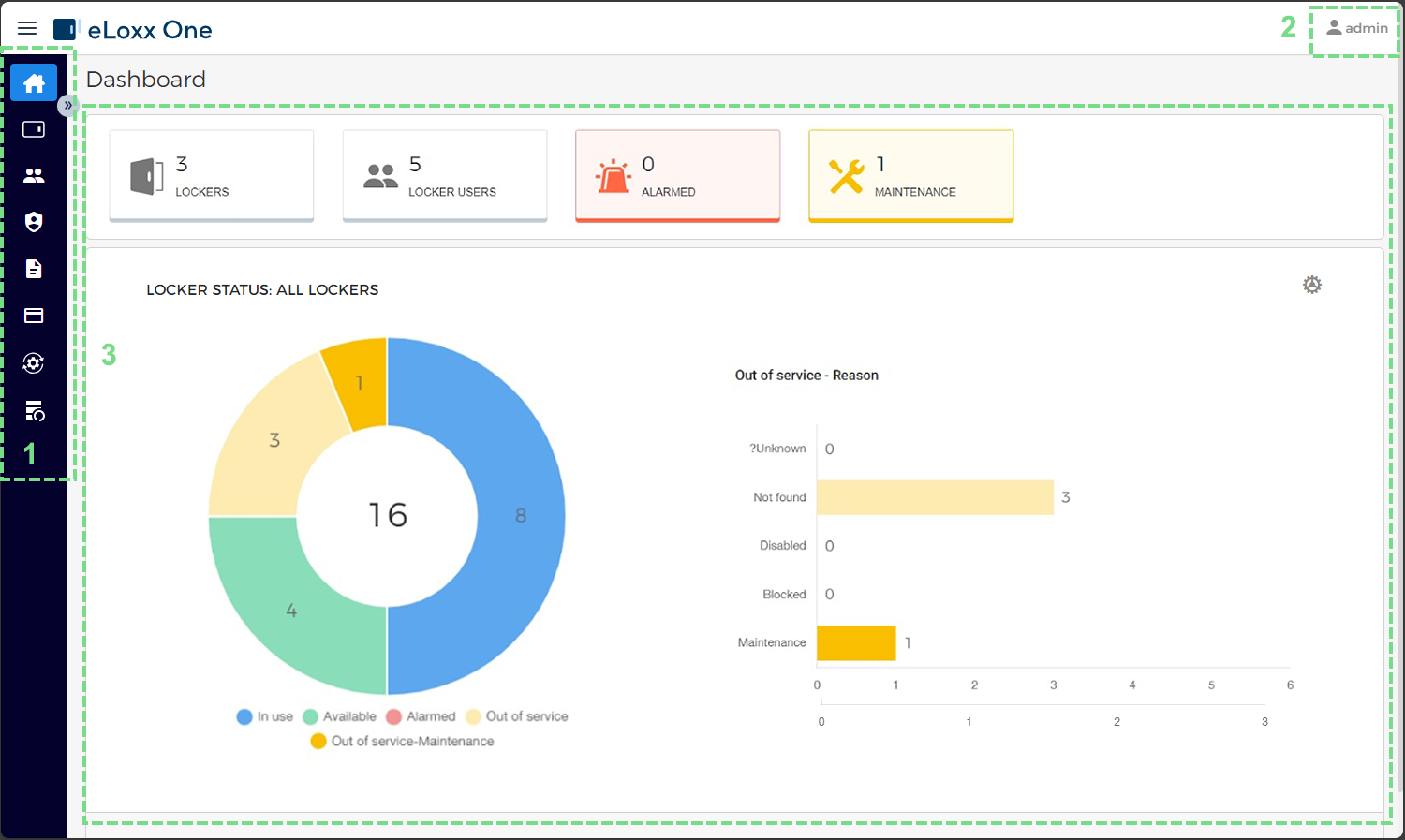
The following areas and functions are available in the main window:
Menu bar
Select the desired page from the menu.
Dashboard:
This view is displayed after logging in and provides an overview of the locker system (usage, alarms, etc.).
Locker view:
All lockers used in the system, divided into locker groups, are displayed here.
Locker users:
The users of the locker system are managed here.
Authorization groups:
Authorization groups can be used to control the location and number of lockers that members of the authorization group can use.
Logs:
All activity in the locker system, e.g., the locking and unlocking of lockers, etc., is logged. You can evaluate the logged data here.
Mastercards:
Here, the master cards for the system are displayed for configuration and can be enabled or disabled.
Automatic locker action:
Different locker actions, e.g. the activation of maintenance mode, can be scheduled on this page to be carried out automatically.
Backup:
The backup feature allows to save all data from eLoxx One (locker users, locker groups, data carriers, authorization groups, app and network configurations, etc.) and restore a previously saved backup.
User menu
The username of the currently logged in user is shown here. Clicking on the name opens the user menu where you can set the display language (Language) of eLoxx One, view contact information (About), change the password used to log in to eLoxx One, and log out of the application (Log out).
Main window
This area displays different information depending on which page is selected via the menu bar. The pages are described in the following chapters.