5.11. Adding locker user manually
New locker users are added to the system and managed via the Locker users page.
Open the Locker users page.
↪ All defined locker users are displayed.
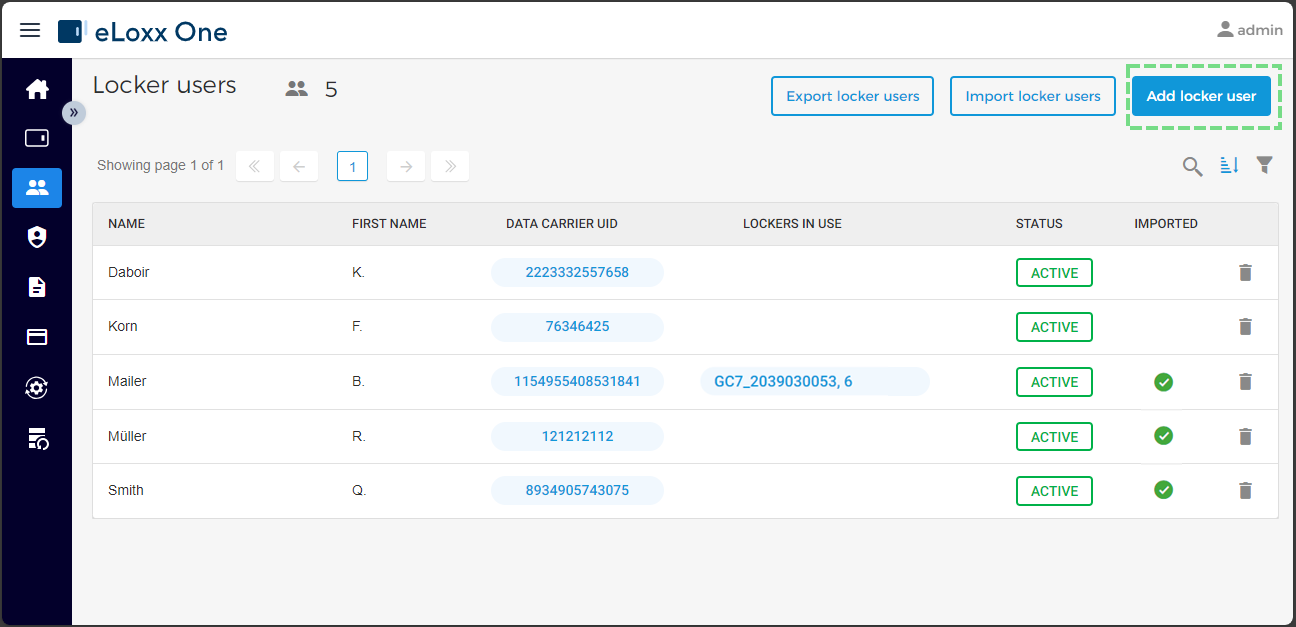
Click on the Add locker user button.
↪ The user information window opens.
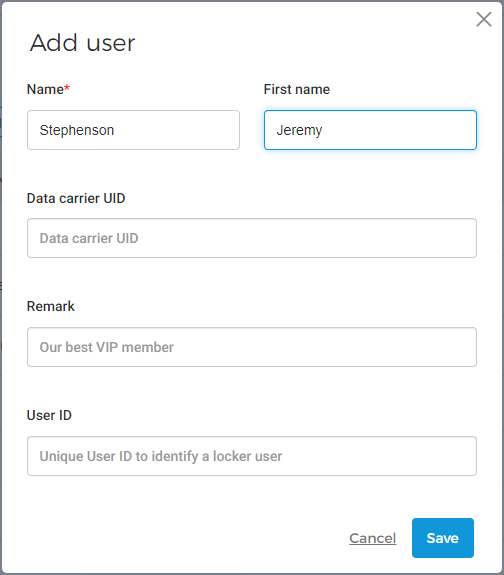
Enter the first and last name of the user into the respective fields. You can also enter the unique number (UID) of the user's data carrier. A data carrier UID can also be addedd later (see note below).
Each locker user also has a unique user ID for identifying the users. If you enter a number that is already used, a note will be displayed to show that another number must be selected.
A remark can also be added for a user with additional information about the user.
Click on Save to complete the process.
↪ The new user is added to the list of locker users.
Notice
You can now assign data carriers (see “Assigning data carriers to a locker user”), lockers (see “Assigning lockers to a locker user”, and authorization groups (see “Assigning authorization groups to a locker user”) to the user.