3.2. Adding operators to eLoxx One
The system operators of eLoxx One, e.g., the employees of the facility responsible for managing the locker system, are added via the G7 Main Controller App in the GC7 web interface. Multiple operators can be added and assigned to two different roles (Manager or User), which defines their rights in the system. Complete the following steps.
Via the sidebar menu of the GC7 web interface, go to Device Configuration → Security and user.
↪ The following window opens.
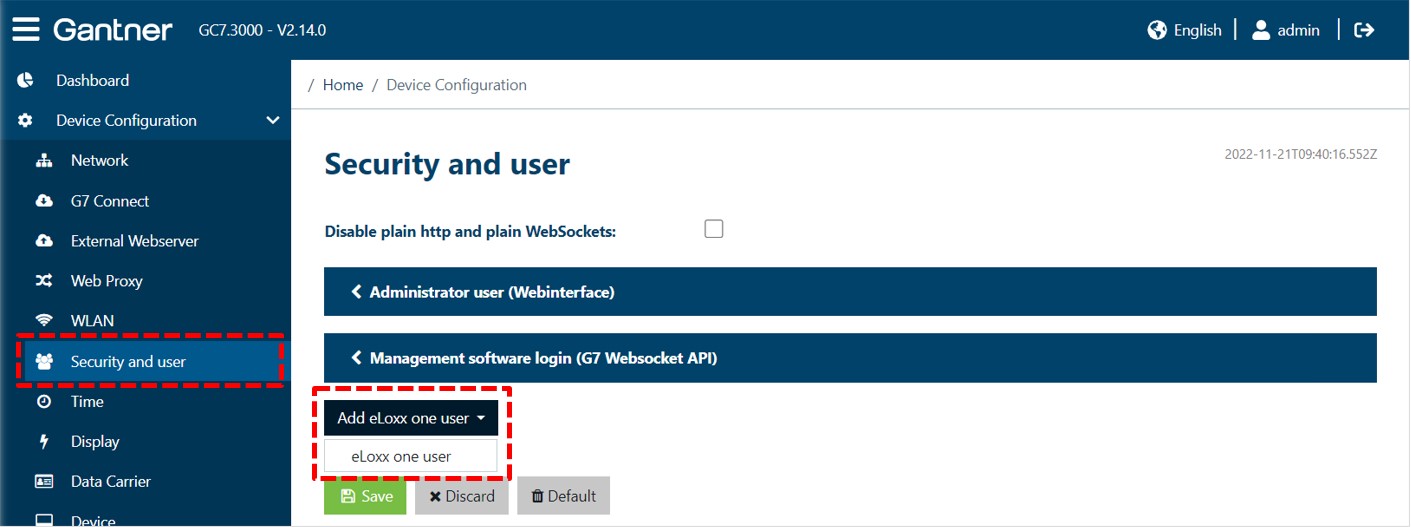
Click on eLoxx One user from the Add eLoxx One user menu.
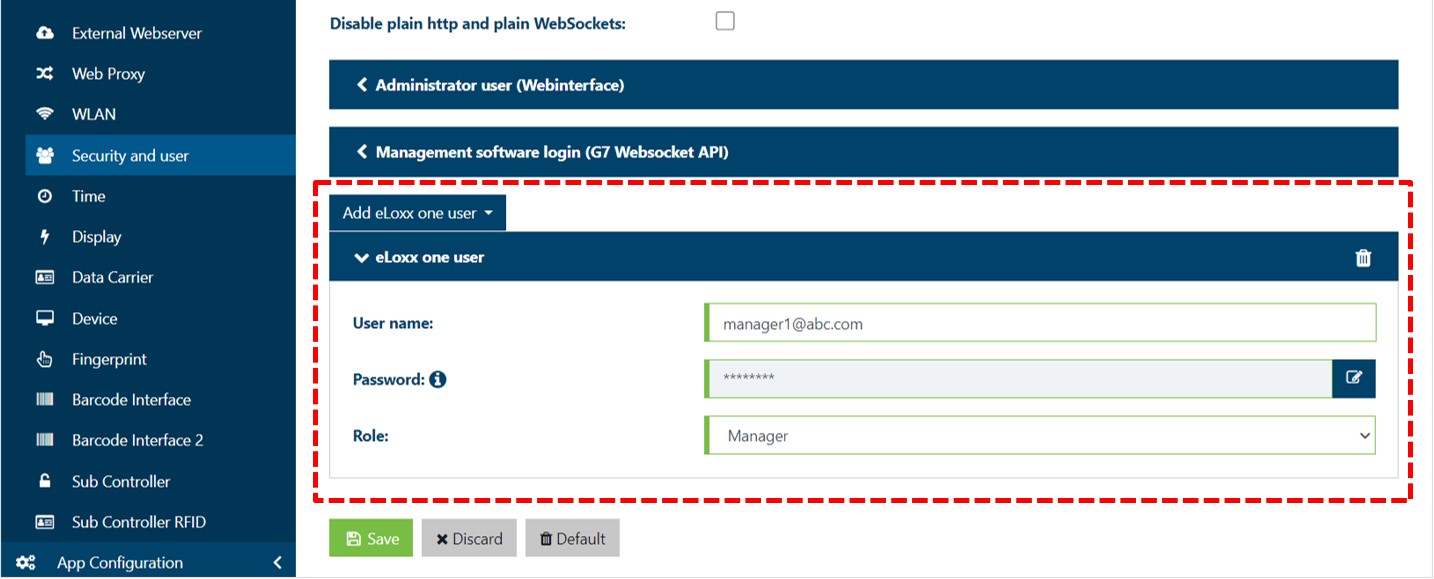
Enter a username and password (password requirements: min. 8 characters, min. 1 uppercase letter (A – Z), min. 1 lowercase letter (a – z), min. 1 number (0 – 9)) into the respective fields.
Select a role for the eLoxx One user:
Manager: This role can view all the data like an Administrator, but has some limitations in creating new data. He can also not perform a restore of a backup file. See table below for detalis.
User: This role has less rights than a Manager role. Basically this user role can view the Dashboard, Locker view, Locker users, Authorization groups, and Logs pages but cannot add information. See details below.
Function
Administrator
Manager
User
Dashboard
> view all locker infos
> select locker mode
> view all locker infos
> select locker mode
> view all locker infos
> select locker mode
Locker view
> view locker overview
> view locker details
> open and lock lockers
> disable lockers
> assign a user
> set/revert maintenance mode
> change the locker mode
> view locker overview
> view locker details
> open and lock lockers
> disable lockers
> assign a user
> set/revert maintenance mode
> view lockers overview
> view locker details
Locker user
> view locker users
> edit, activate/deactivate locker users
> add new locker user
> import/export locker user
> view locker users
> edit, activate/deactivate locker users
> add new locker user
> import/export locker user
> view locker users
Authorization groups
> view authorization groups
> edit/delete existing authorization group
> add locker users to authorization groups
> view authorization groups
> add locker users to authorization goups
> view authorization groups
Logs
> view log entries
> define table columns
> set filters
> view log entries
> define table columns
> set filters
> view log entries
> define table columns
> set filters
Mastercards
> view master cards
> add news master cards
> edit existing master cards
> activate/deactivate master cards
> view master cards
X
Automatic locker action
> view autom. locker actions
> creat new autom. locker actions
> edit/delete existing locker actions
> activate/deactivate locker actions
> view autom. locker actions
X
Backup and Restore
> backup database
> restore database backup
> backup database
X