5.19. Restore eLoxx One database with a previously saved backup
When restoring a previously saved backup, the data in the backup file will be read and the existing database of eLoxx One will be updated with the read data records. This will set eLoxx One back to the state at the time the backup was taken.
Notice
Keep in mind that when resotring a backup, all current data will be overwritten with the backup data.
Note that in order for restoring all data correctly, the system structure (hardware) must not have been changed between the backup and restore. Only then all locker and controller configurations and locker groups etc. can be reconfigured correctly. If you would have changed a hardware component like a controller or locks, the restore of the locker and controller configuration will fail.
To restore data from a previsoulsy saved backup, proceed with the following steps.
Select the Backup menu item.
↪ The number of currently stored data records in the database is shown.
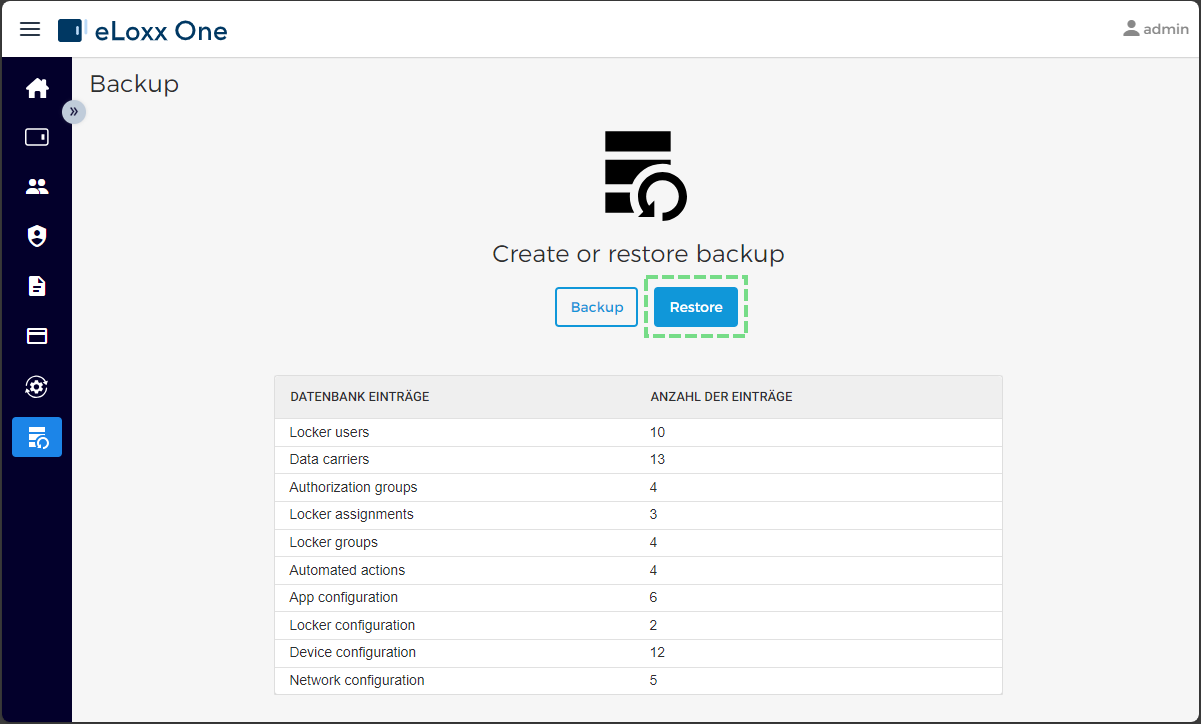
Click on the Restore button.
↪ The Restore page with the first step (Select file) will be shown.
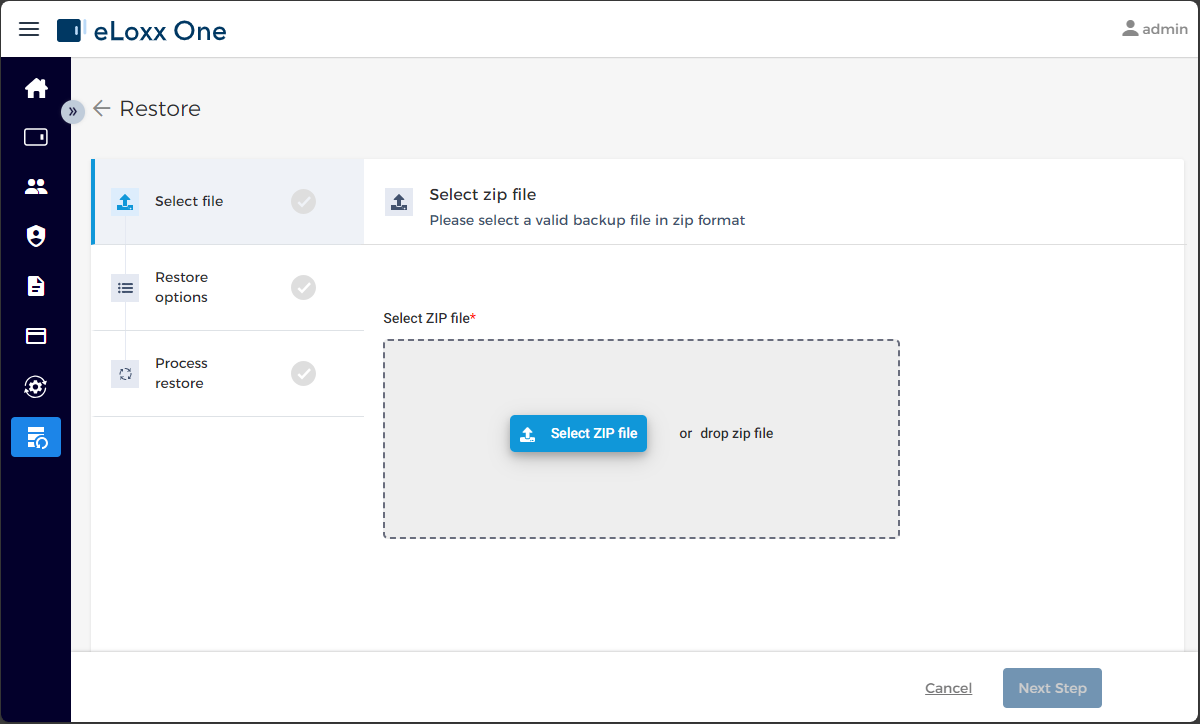
Select the ZIP file that holds the backup data that shall be restored. Therefore you can click on the button Select ZIP file or drag the ZIP file onto the gray field.
The file is processed and checked. If the content is correct, a blue message shows that the backup data is valid. Else an error message is shown in red. Check if you seleced a valid backup file that was generated with the Backup function of eLoxx One.
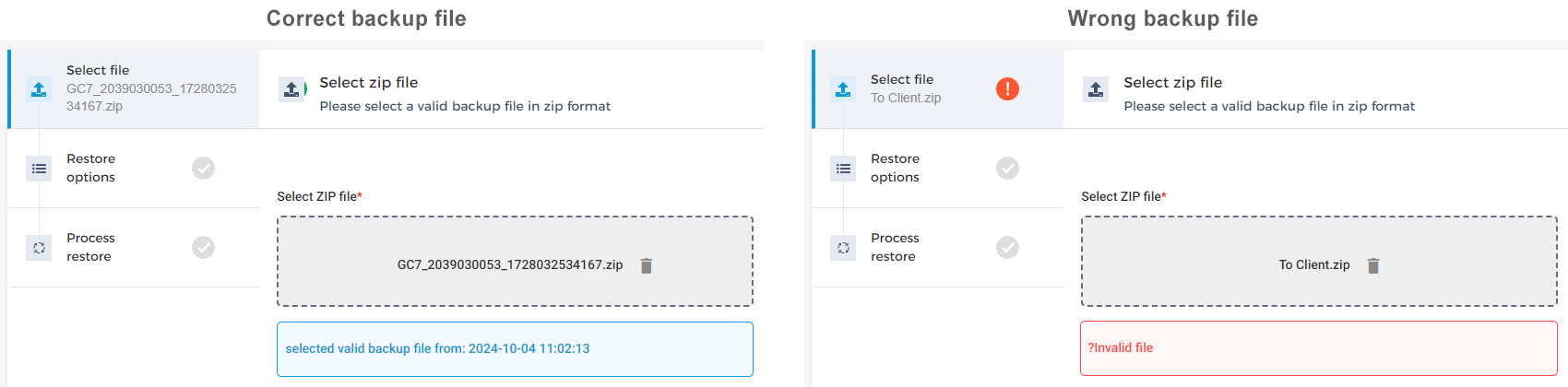
Click on Next step.
↪ The step 2 in the restore process is shown.
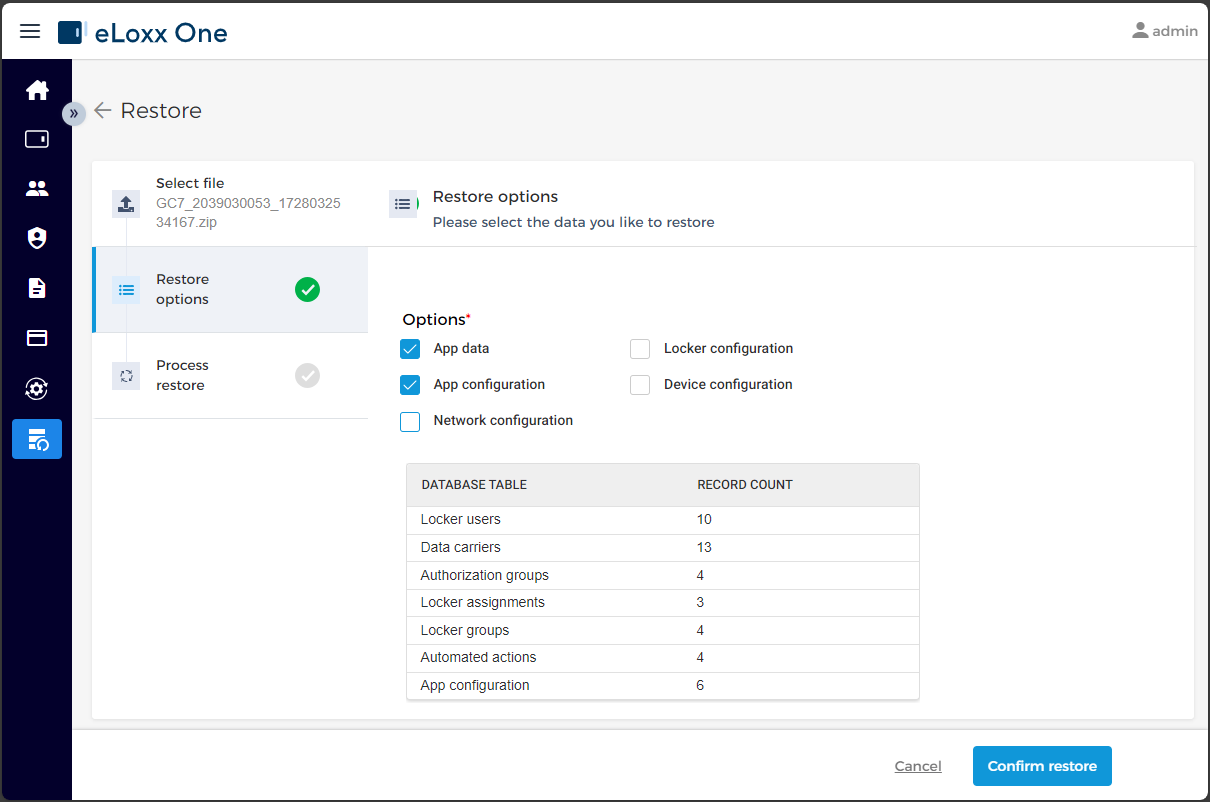
Here you can select, which data shall be imported, by selecting the desired data in the Options area. Only the selected data records are restored and the remaining data will not be changed.
When selecting different options, the corresponding data, that will be restored, is shown in the table below.
Notice
Note: When you select only the Locker configuration data option and no other option, detailled information about the locker configuration is shown in the table below.
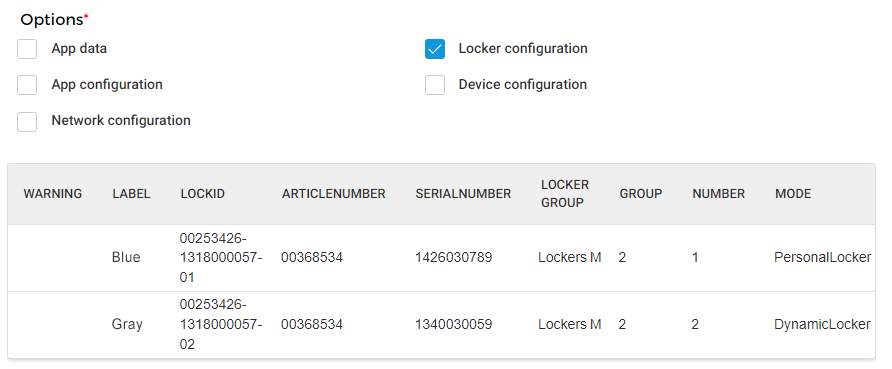
Now you can press Confirm restore.
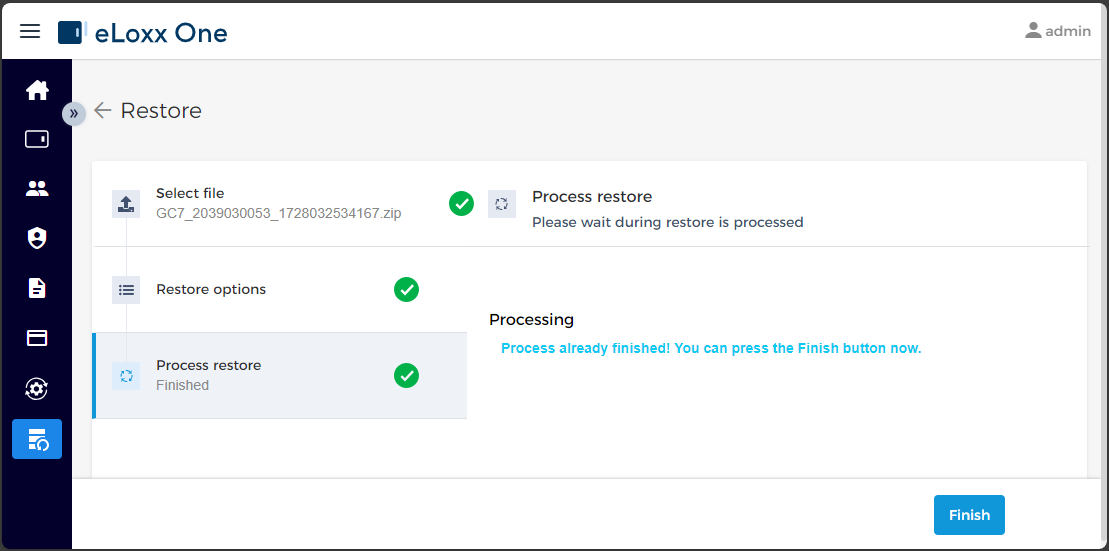
↪ Do not close the window or cancel the process, whilte the restore process is active. During this process the following information text is shown.
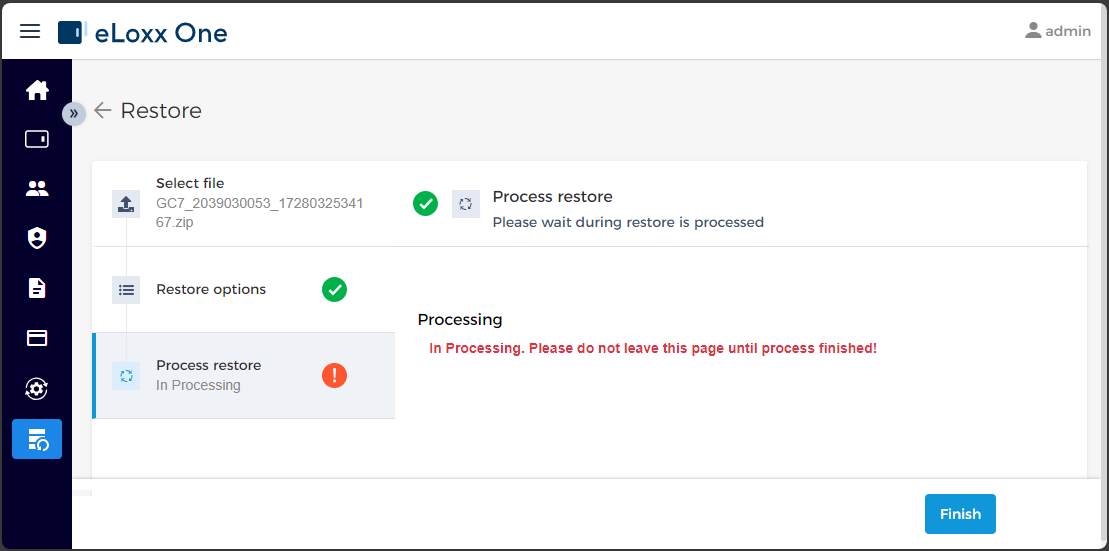
When the restore process is completed, a corresponding message is shown. Confirm with clicking the button Finish.