3.1.2. License activation in the GC7 web interface
The initial configuration of the locker system is completed in the GC7 web interface via the G7 Main Controller App, which must be set as the active app. All installed apps are listed on the Installed Apps page with the currently active app indicated with the green Active App text.
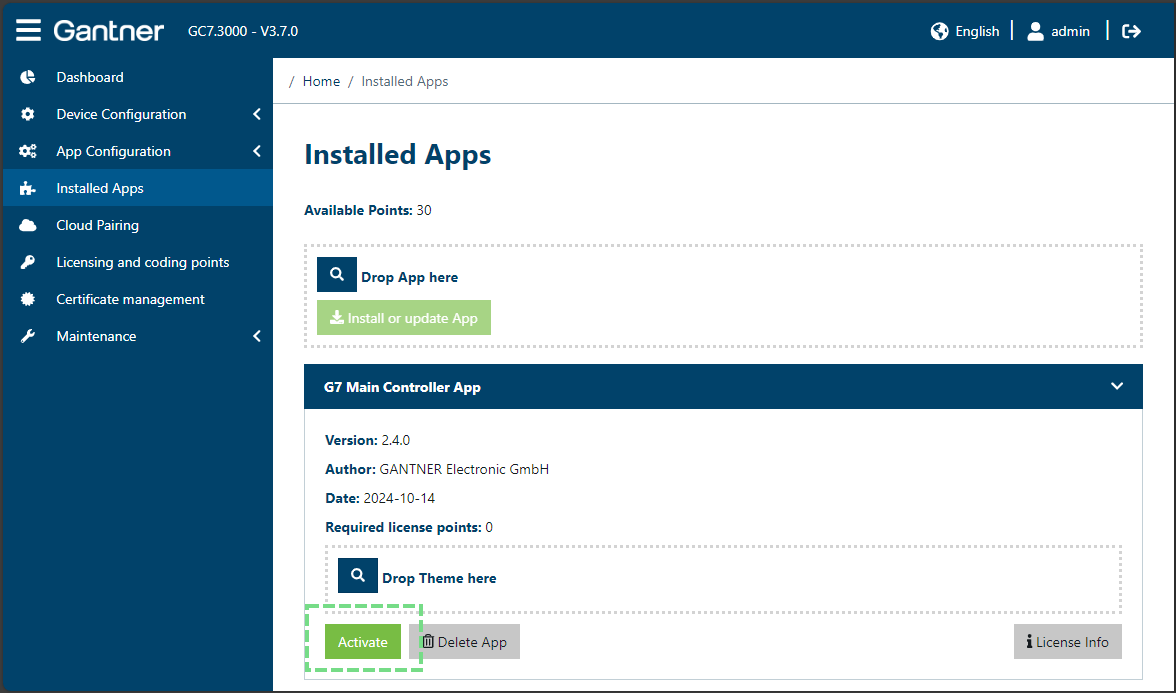
If required, start the G7 Main Controller app via the Activate button.
↪ The app starts, which can take up to one minute.
↪ Only one app can be active at a time, i.e., the currently active app is automatically stopped before a new app is activated.
Notice
In the upper Drop App here field, a new app or a new version of an already installed app can be uploaded to the GC7 controller. The app file is required for this, which must be dragged and dropped onto this field.
After setting the G7 Main Controller App as the active app in the GC7 web interface, the user interface of eLoxx One must be activated according to the following steps.
Open the Widgets page via App Configuration → Widgets of the GC7 web interface.
↪ The following window opens.
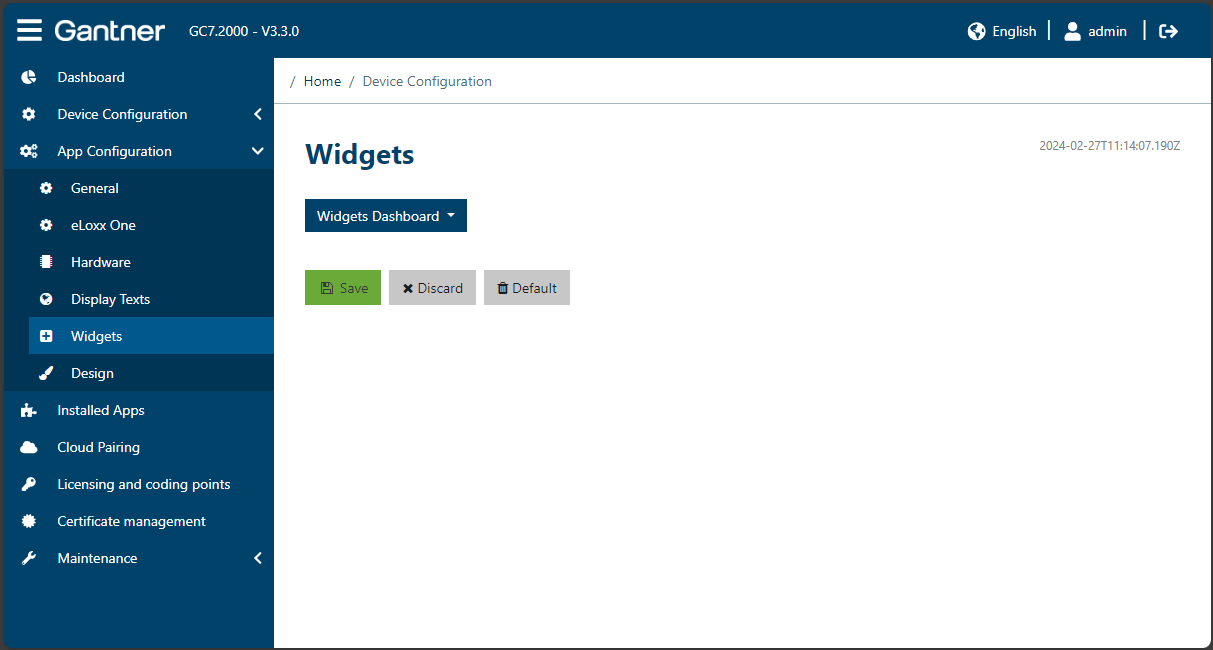
Click on Dashboard Widgets and select eLoxx One Navigator from the menu.
↪ The URL of eLoxx One is added automatically.
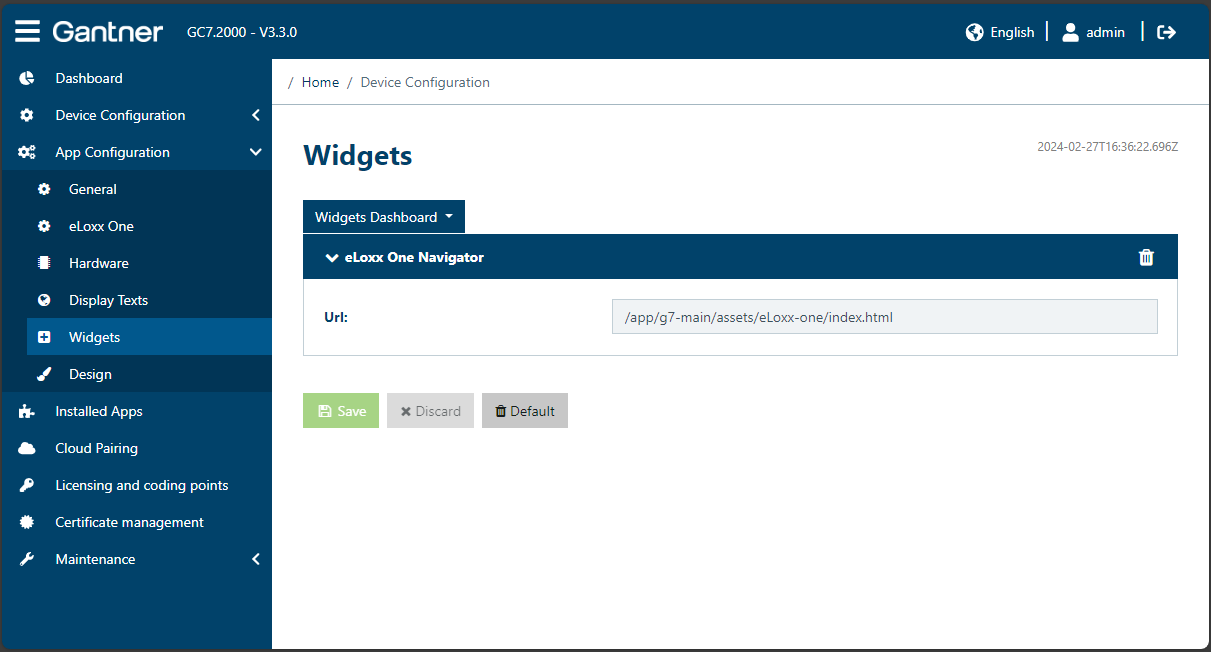
Click on Save.
Open the Dashboard page on the GC7 web interface.
↪ Here you will notice a new button in the G7 Main Controller App section: Open eLoxx One.
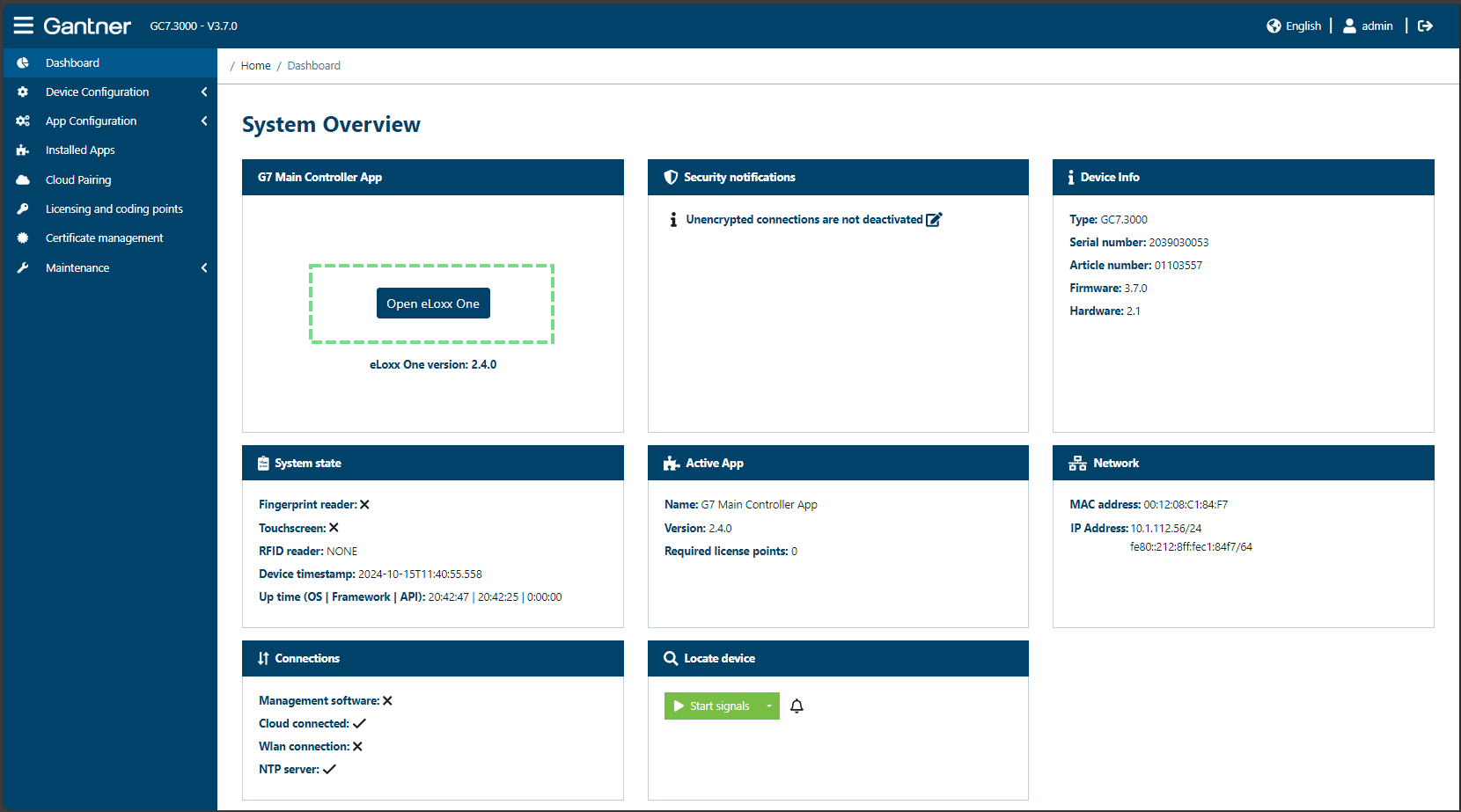
Click on the Open eLoxx One button.
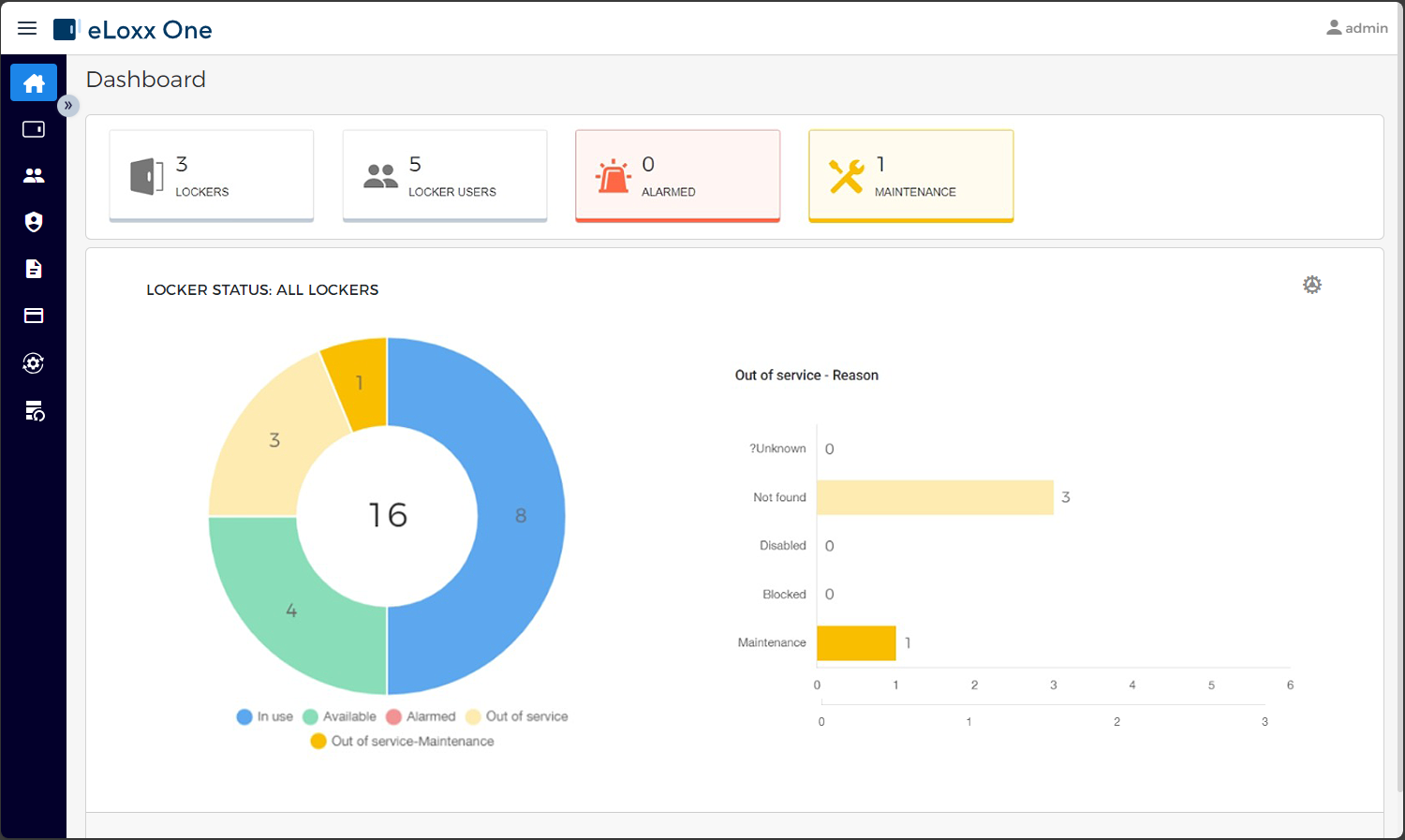
↪ eLoxx One opens in a new tab of your browser and the Dashboard is shown.
Notice
eLoxx One can also be accessed by manually entering the following URL into a web browser:
http://0.0.0.0/app/g7-main/assets/eloxxoneEnsure to replace the IP address shown above (0.0.0.0) with the actual IP address of your GC7 controller.