4.3. Dashboard
 |
The dashboard displays an overview of the locker system.
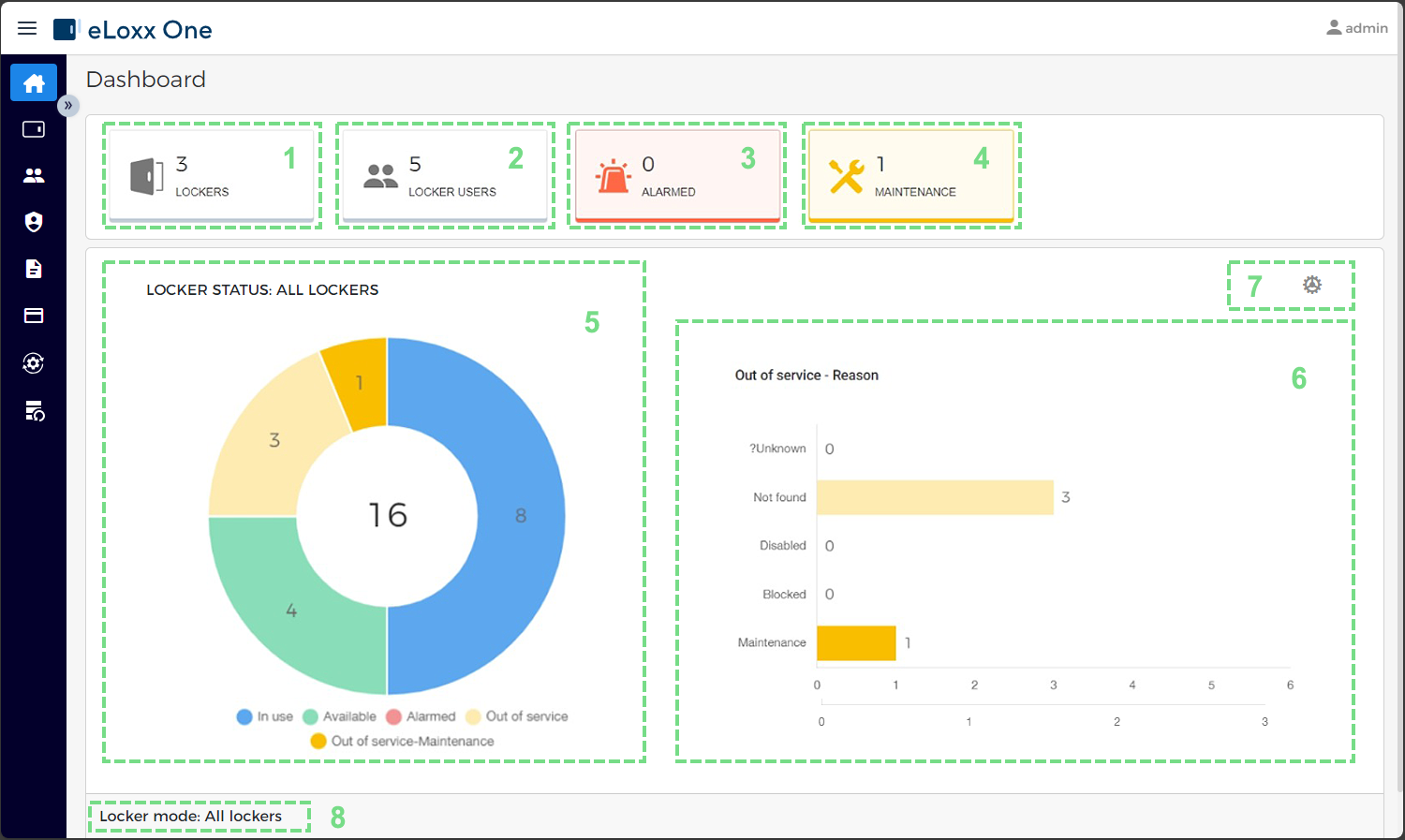
Number of lockers
The total number of lockers defined in the system for the selected locker mode (see point 8). Clicking on this icon displays the Locker view page.
Locker users
The total number of locker users that have been added to the system, i.e., how many people are authorized to use the lockers. Clicking on this icon displays the Locker users page.
Alarmed lockers
Displays how many lockers currently have an active alarm that has not yet been acknowledged. Click on this icon to open the Locker view page where all lockers with an active alarm are displayed. Here you can deactivate the alarm and enable the locker via the Actions menu (see “Displaying locker information").
Lockers in maintenance mode
Number of lockers that are currently in maintenance mode (not usable). Lockers can be deactivated, e.g., for service purposes. If you click on this icon, all lockers in maintenance mode are displayed via the Locker view page.
Status overview
This diagram displays the number of locker statuses at the current time:
Green: Unoccupied free lockers as well as personal lockers without a locker authorization.
Blue: Occupied free lockers as well as personal lockers with a locker authorization.
Red: Lockers with an active alarm.
Yellow: Lockers that are currently out of service, e.g., in case of communication interruptions, or deactivated lockers.
Orange: Lockers in maintenance mode.
The number in the middle is the total number of available lockers (=all lockers). By clicking on a segment in the diagram, you can directly display the relevant lockers via the Locker view page.
Unusable lockers
Here you can see the lockers that are currently out of service and the reasons for this. Possible reasons are that lockers have been manually deactivated, are blocked, or are in maintenance mode. If the connection is interrupted, these are displayed as Unknown.
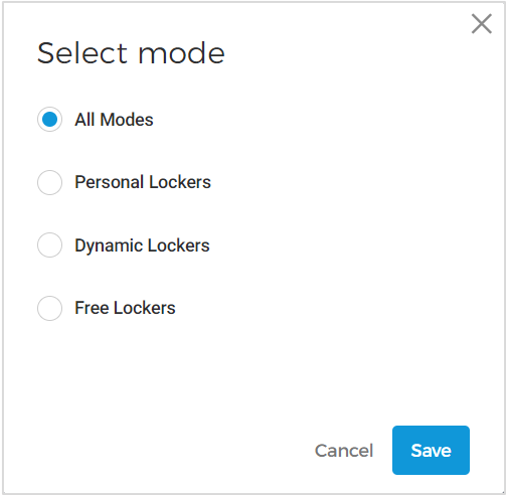
Locker mode selection
A locker mode can be selected here to display only those lockers operating in a specific mode on the dashboard. If you select, e.g., Free Lockers, only those lockers operating in free locker mode are displayed in the LOCKER STATUS area (5) and the Out of service area (6). To display all lockers, select All Modes.
Locker mode display
Here you can see the locker mode selected under (7). Only lockers with this mode are displayed in the statistics. All lockers means that all locker modes are displayed.