5.15. Defining authorization groups for locker users
A locker user can be assigned to multiple authorization groups. In order to use a specific locker, the locker user must be assigned to an authorization group that grants access to this locker. When a locker user attempts to lock a free locker or when an operator assigns a personal locker to a locker user, eLoxx One checks whether the user is assigned to any authorization groups that grant access to this locker before denying or granting the request.
Open the Authorization groups page.
↪ All defined authorization groups are displayed.
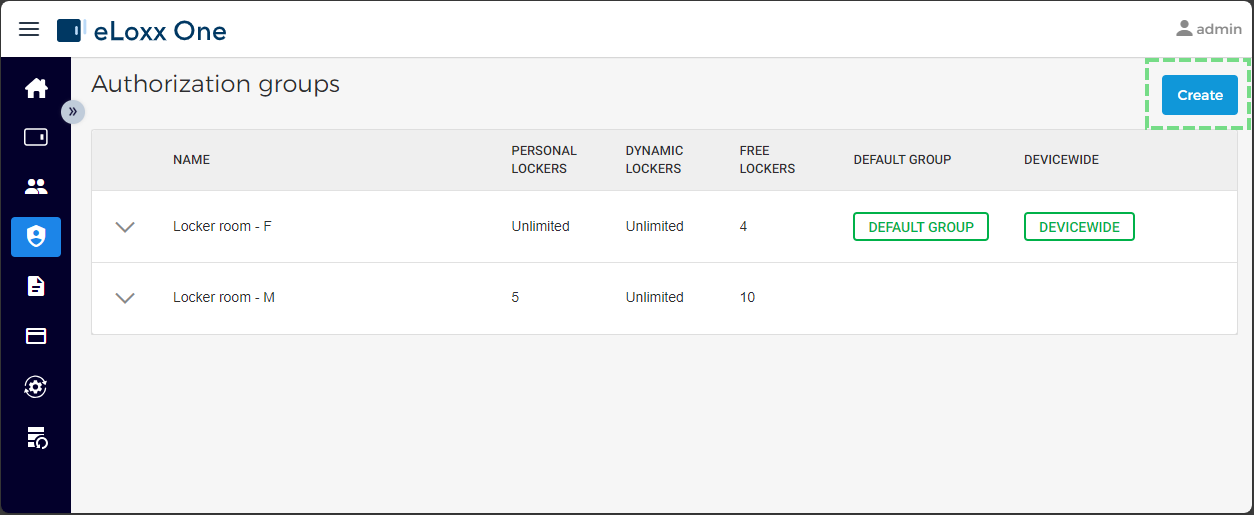
Click on Create.
↪ The following window opens.
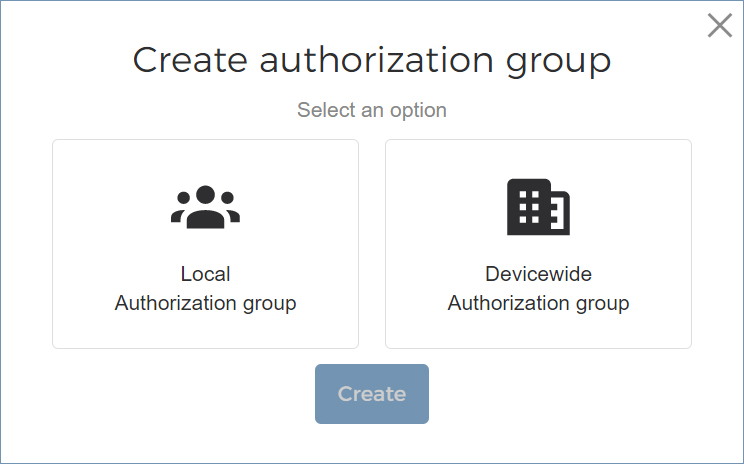
Select the type of authorization group. When an authorization group is set as a Devicewide Authorization group, all locker groups of the GC7 controller can be accessed. Alternatively, select Local authorization group to restrict access to a specific locker group or groups. After selection, press Create.
↪ The following window is displayed.
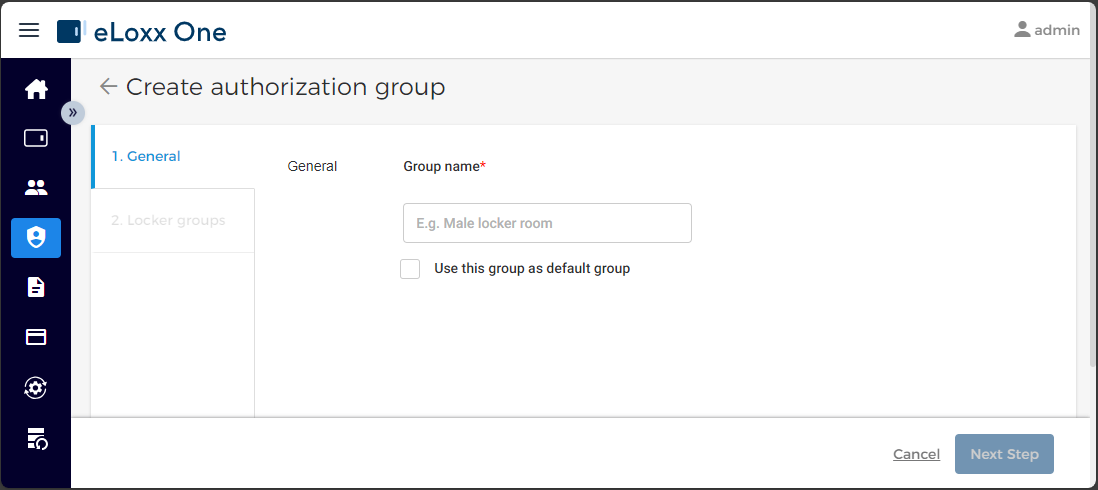
Enter a name for the authorization group, e.g., Male locker room.
If desired, enable the Use this group as default group option. When an authorization group is set as a default group, every new locker user added to the system is automatically assigned to this authorization group. Multiple authorization groups can be set as the default group at the same time.
Click on Next Step.
↪ The following window is displayed.
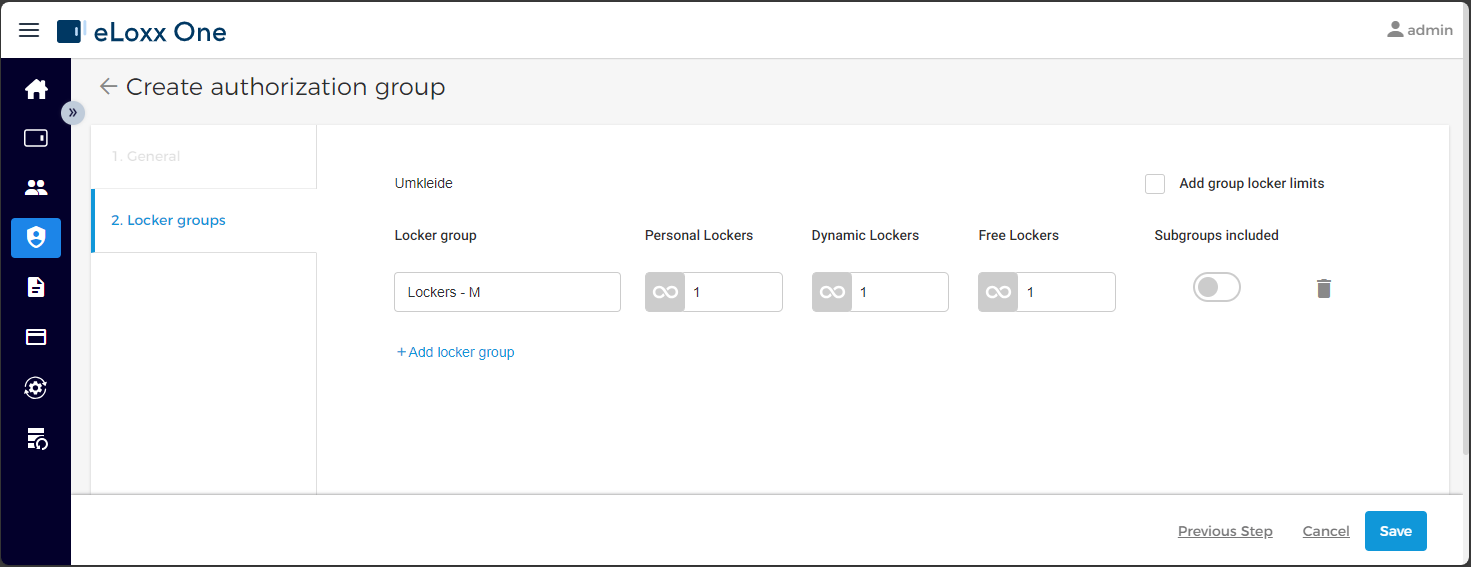
Select the locker groups that the members of the authorization group are allowed to use. To do so, click on the Locker group field to open the locker group selection window. Additional locker groups can be added via the Add locker group button.
If you want to include all subgroups of the main locker group in the authorization group, enable the Subgroups included option.
For each locker mode of the locker group, select the number of lockers that the members of the authorization group are allowed to use. For example, if 3 is entered in the Free locker field, the users assigned to this authorization group can occupy up to 3 lockers in free locker mode simultaneously. The default values for allowed lockers per mode is 1.
Optional step: Select the Add group locker limits setting to define a total locker limit for all locker groups assigned in this authorization group.
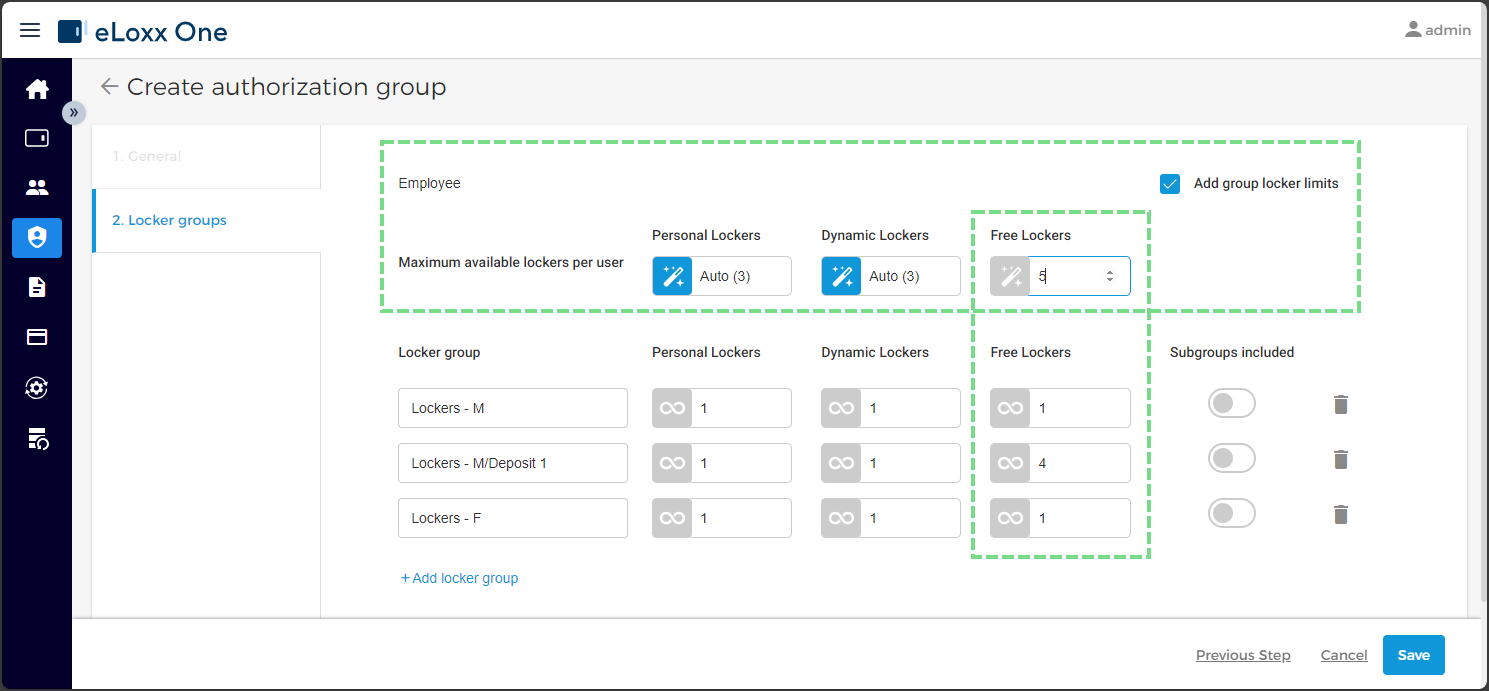
Example:
In the “Employee” authorization group (see image above), employees are allowed to have the following number of "free lockers":
1 free locker in the locker group "Lockers - M"
4 free locker in the locker group "Deposit 1"
1 free locker in the locker group "Lockers - F"
This would mean that without the group locker limit users of this authorization group could use a total of 6 lockers in the three locker groups at the same time (1 in "Lockers -M", 1 in "Lockers - F" and max. 4 in "Deposit 1").
But in this example the Add group locker limits is activated and the value for Free Lockers is set to 5, so this means that a total of 5 lockers of Free Locker Mode can be used in the groups together. So for example if 1 locker is used in "Lockers - M" and 4 are used in "Deposit 1" no locker can be used in "Lockers - F".