3. Installation
The first step in the configuration of the eLoxx One locker system is to access the web interface of the GC7 controller. You can use any common web browser to directly access a GC7 controller that is reachable via the network.
Open a web browser on a PC or mobile device.
Enter the IP address of the GC7 controller into the address line.
Note: The GC7 controller uses DHCP by default to automatically obtain an IP address from the network. Ask your network administrator for the IP address.
Note
You can also use GANTNER's GAT Device Finder software to scan the network for devices. A GC7 controller will be displayed there with the device type GC7.x000 and the IP address. The GAT Device Finder software is available in the partner area of the GANTNER website.
↪ The login page of the GC7 controller web interface opens.
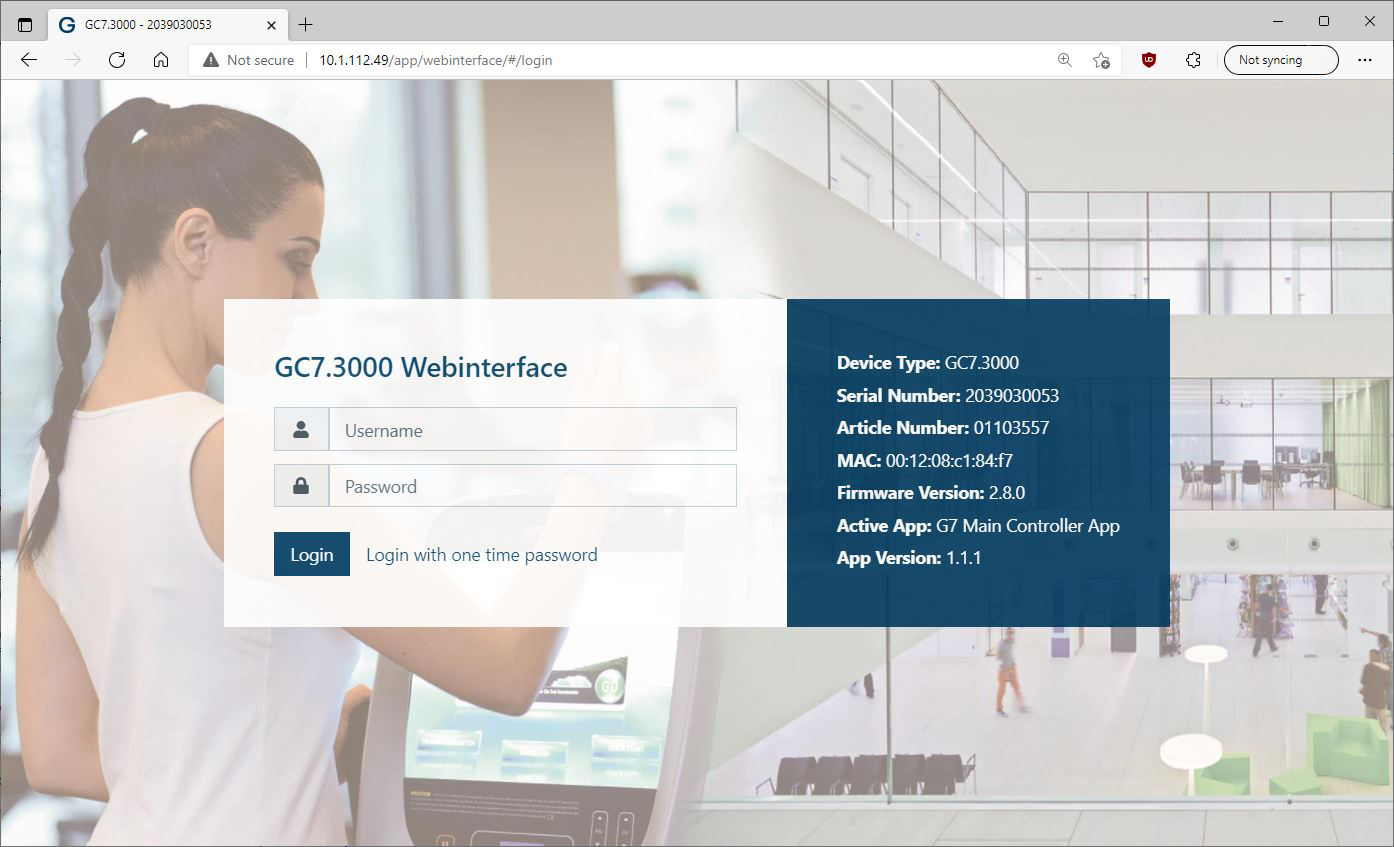
In the login window, enter your username and password and click Login.
Note
The default username is admin and for the default password please contact the GANTNER support. After the initial login, please change the default login details to a secure username and password. This is done in the GC7 web interface on the Security and user page of the Device Configuration menu (see Adding operators to eLoxx One).
Note
In the GC7 configuration more eLoxx One operators can be created. The user names, passwords and user levels ("Manager" and "User") are selectable. See Adding operators to eLoxx One for more information.
↪ The dashboard of the GC7 web interface opens with an overview of the system settings.
Notice
Refer to the GC7 manual for a full description of the settings and operation of the web interface.