4.5. Locker Users
 |
Here you can manage the users of the locker system by entering their data, assigning data carriers to the users, and defining which lockers or locker groups they are authorized to use. The following is possible:
Lockers operating in "free locker mode" can be assigned to authorization groups with individual locker users assigned for specific authorization groups. This ensures that the locker users are only able to use the lockers of their respective groups.
Lockers operating in "personal locker mode" can be assigned to one or more users so that only those authorized users are able to lock and unlock a specific locker. Locker users can only use the locker to which they are assigned.
Notice
More information regarding the various locker modes is available in chapter "What is the difference between the locker modes?".
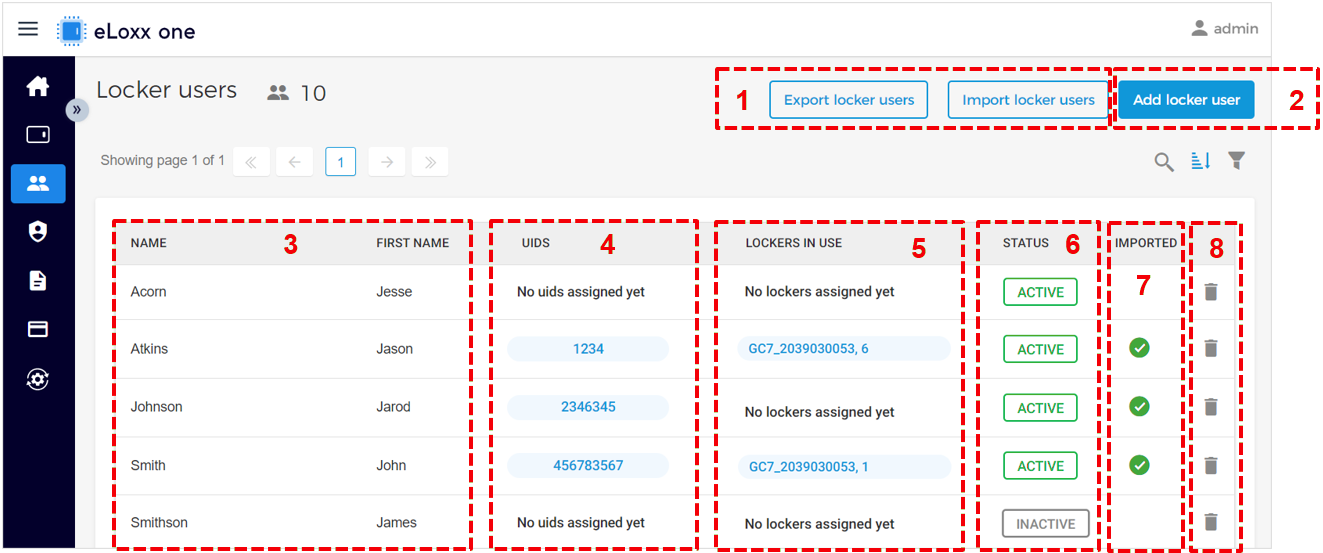
Export/Import locker users:
These buttons allow you to export the locker user data to a CSV file or to import locker users to the eLoxx one database via CSV file. For instructions on this process, see "Adding Locker users via CSV file".
Add locker user:
Click on this button to add a new locker user to the system. For instructions on this process, see “Adding locker user manually”.
Name of the locker user:
The names of all defined locker users are listed here. By clicking on the name of a locker user, the user information page opens where you can, e.g., assign data carriers and lockers to the user.
UIDS:
The UID number of the data carrier(s) currently assigned to the user are shown in this column.
Lockers in use:
The locker(s) currently being used by the user are displayed here. Click on the locker to open the “Locker view” page with filters automatically set for the respective user (see chapter “Locker View”).
Status:
Here you can see at a glance whether the user is allowed (ACTIVE) or not allowed (INACTIVE) to use the locker system.
Imported:
A green tick in this column indicates, that the locker user was imported via CSV file.
Delete user:
Click on the trash can icon to delete the user from the system. All previously configured data is deleted after completing this action.