5.13. Assigning data carriers to a locker user
Multiple data carriers can be assigned to each locker user. The permissions of the authorization group(s) that the locker user is assigned to apply to all data carriers of a locker user.
Open the "Locker users" page.
↪ All defined locker users are displayed.
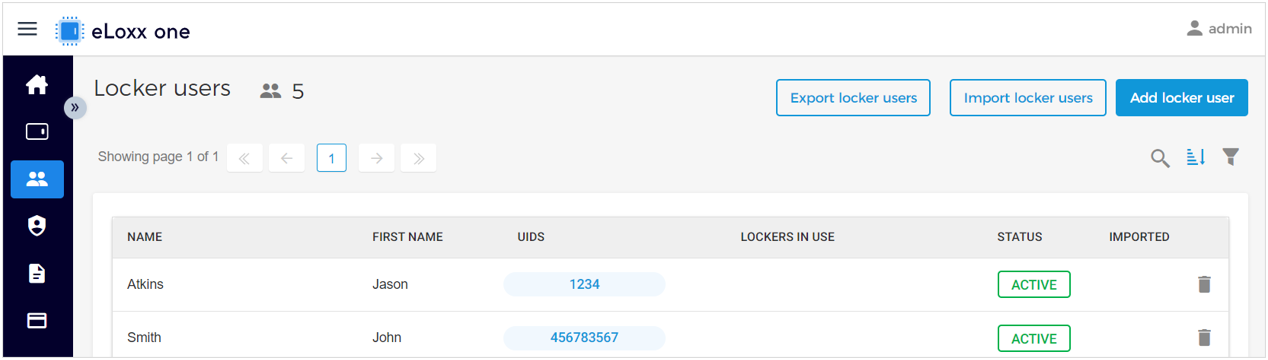
Click on the desired user in the list.
↪ The user information window opens.
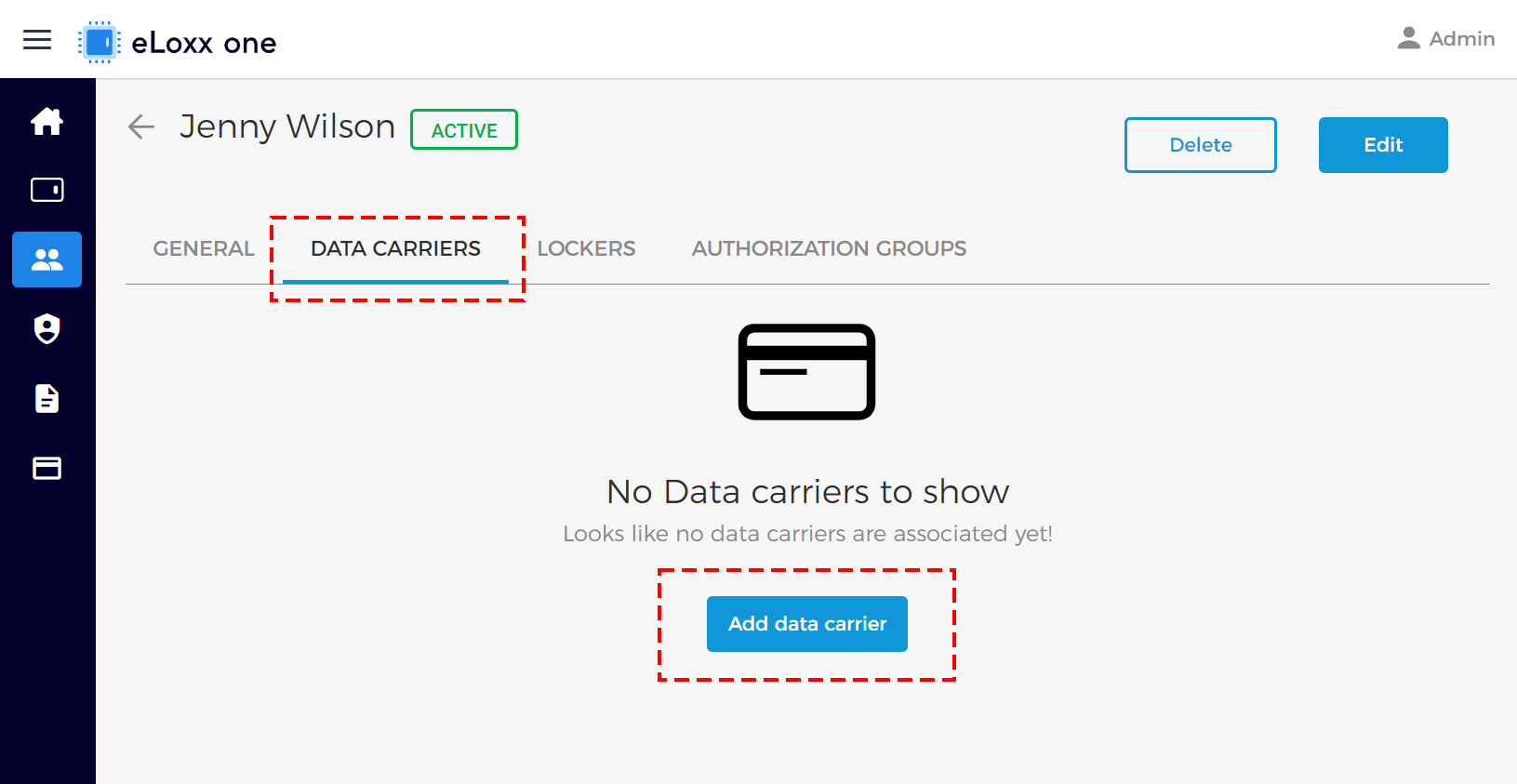
Switch to the "DATA CARRIERS" tab, and then click on "Add data carrier".
↪ The following window opens.
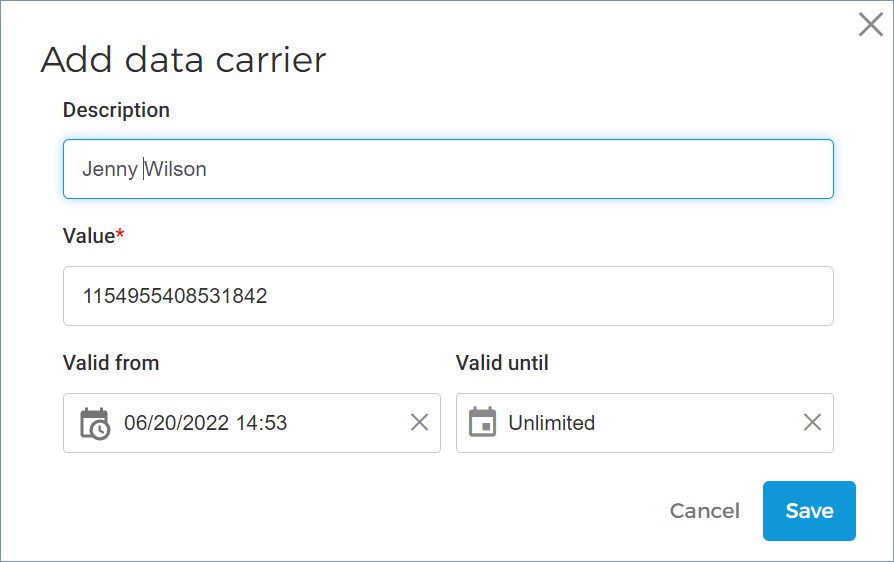
Enter the data carrier number (in decimal format) into the “Value” field (this field is required).
NOTE! The UID number can be copied from the "Logs" page if the data carrier was previously read.
Notice
A GAT NET.Writer can be used to read the UID from the data carrier and enter it automatically into the field. See the GAT NET.Writer manual for instructions.
A relevant description (e.g., an internal number or other identifier) can be entered for the data carrier.
The default validity period for the data carrier can be changed via the “Valid from” and “Valid until” fields.
Click on "Save" to complete the process.
↪ The new data carrier is assigned to the locker user and shown on their “Data Carriers” tab.
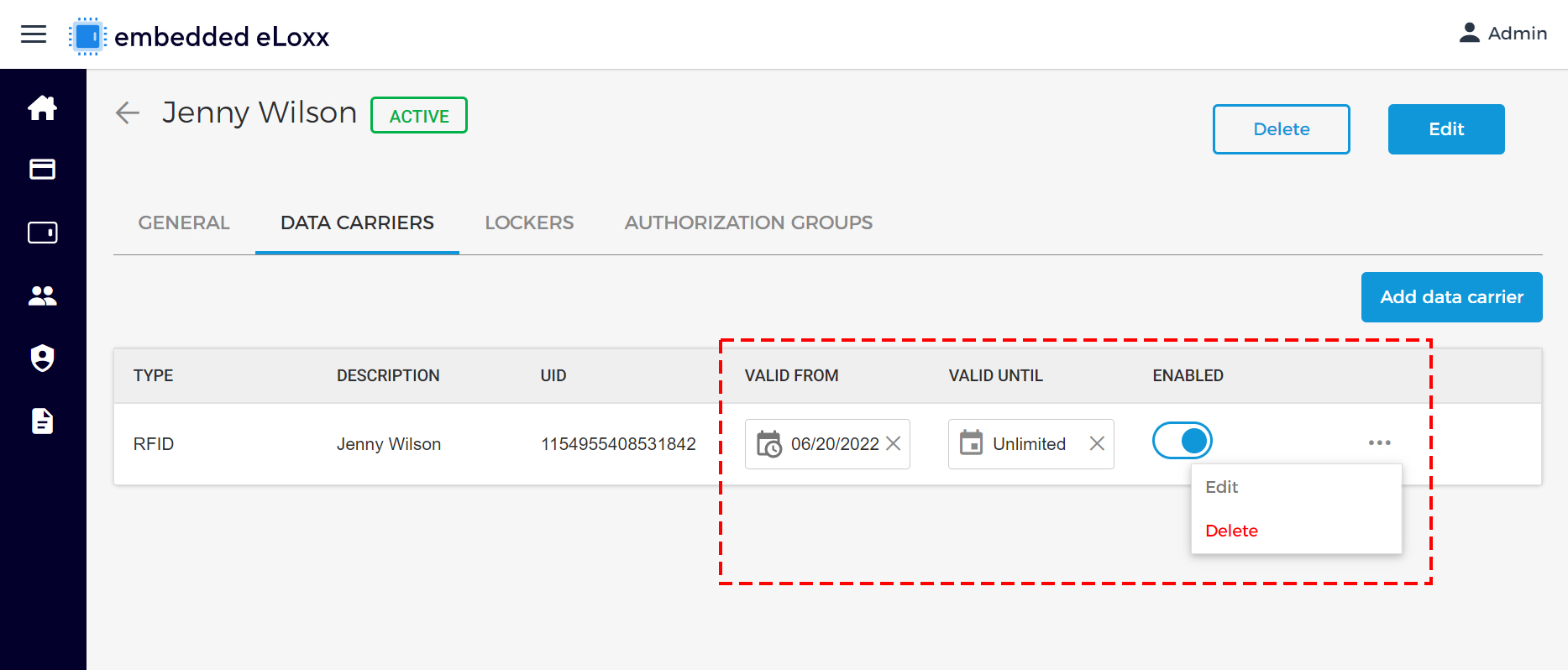
The validity period of the data carrier can be adjusted directly on this page. The data carrier can also be enabled or disabled via the “ENABLED” switch.
To change other details, e.g., the UID number, or to delete the data carrier, click on the settings symbol (
 ) and select “Edit” or “Delete” from the menu.
Multiple data carriers can be assigned to each user by clicking on “Add data carrier” and completing the process again.