5.8. Creating an automatic locker action
Open the "Automatic locker action" page.
↪ All defined locker actions are displayed.
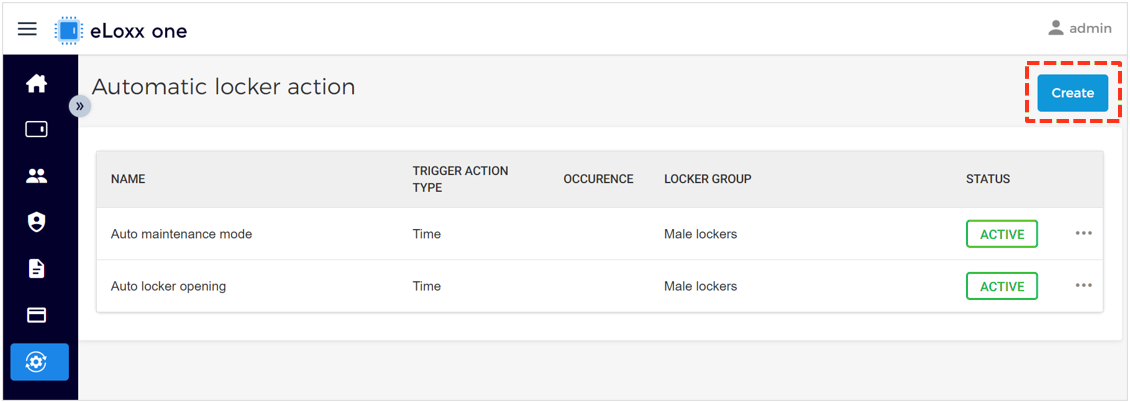
Click on "Create" in the top right corner of the window.
↪ The following window is displayed.
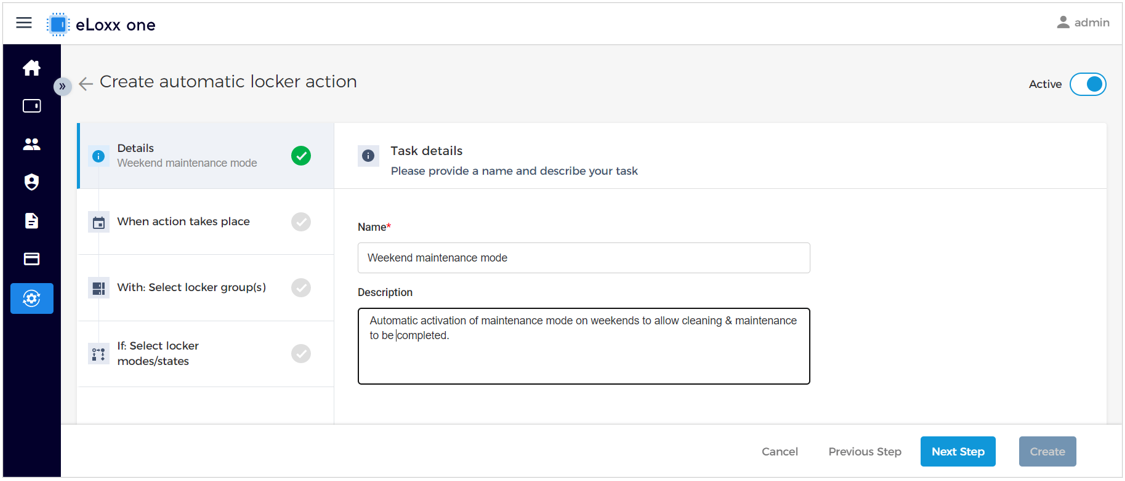
Enter a name for the action (this is shown on the main page) and a description (if desired).
Click on "Next Step"
↪ The window for step 2 is displayed.
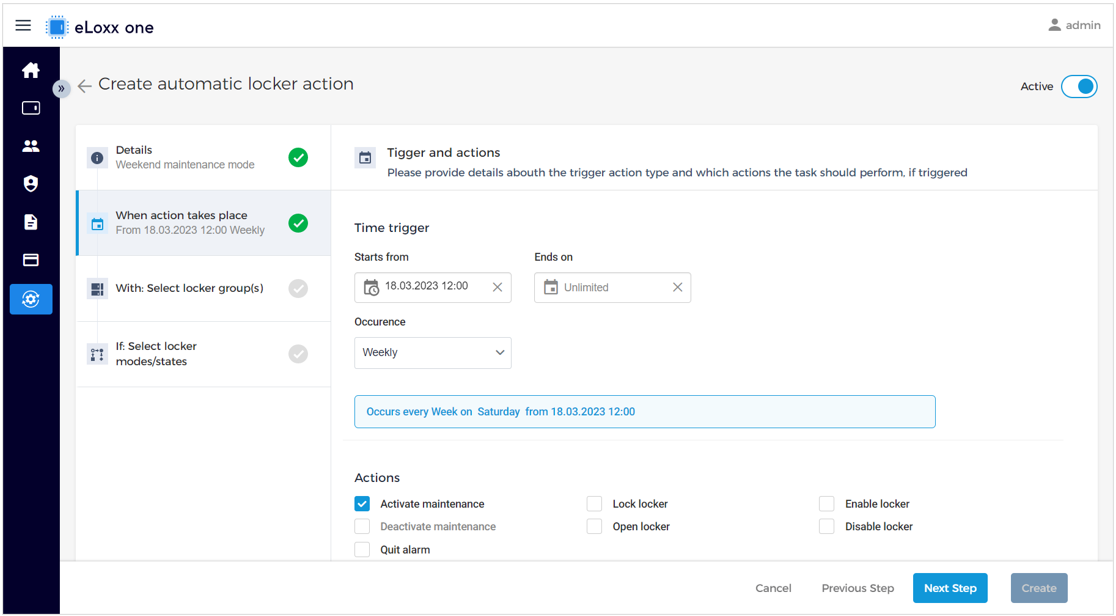
Enter the dates and times when the action is to start and end.
If you want the automatic action to be repeated at regular intervals, set the desired interval in the "Occurence" field.
At the bottom of the window, select the type of automatic action to carry out at the defined time.
Click on "Next Step".
↪ The window for step 3 is displayed.
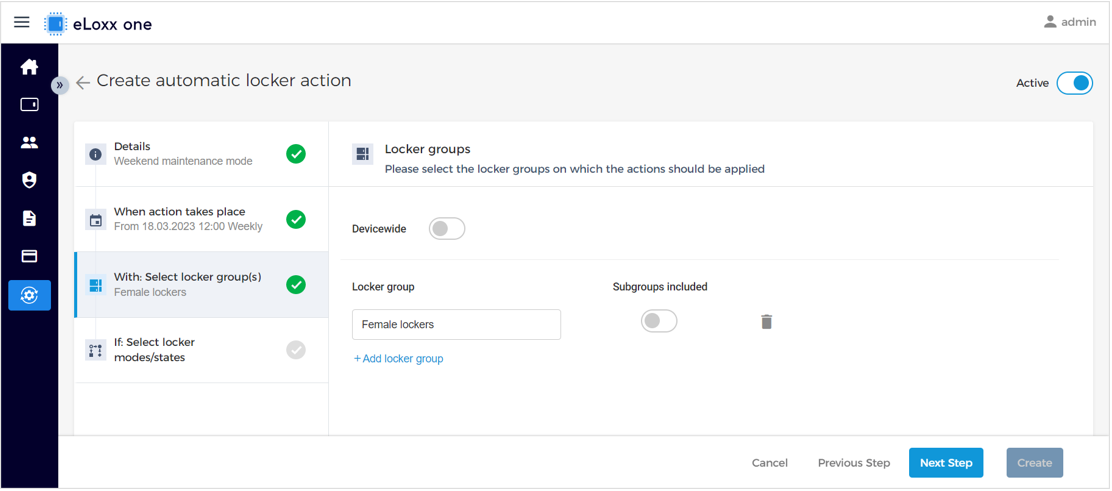
Select the locker group(s) for which the action will be carried out. If "Device wide" is selected, the action, e.g., the activation of maintenance mode, will be carried out for all lockers in the system at the defined time. Alternatively, the individual locker group(s) can be selected below. Select the "Subgroups included" option to include all subgroups of the locker group in the action.
Click on "Next Step".
↪ The window for the final step is displayed.
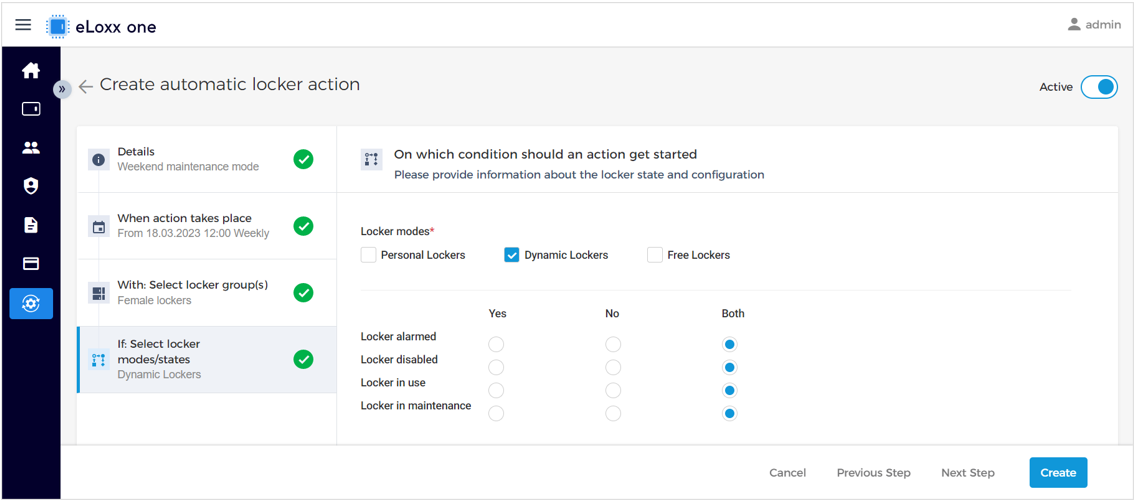
Select at least one locker mode for which the action will be carried out. The action will be executed for all lockers of the selected locker group(s) that are operating in the selected mode(s).
If necessary, define the condition(s) for activation of the locker action below. The default setting of "Both" for a condition means that the condition will be ignored.
Once all the settings are configured, click on "Create" to complete the process.