4.6. Authorization Groups
 |
All locker users must be assigned to an authorization group (or also to several authorization groups) in order to use the lockers in the system. Authorization groups are created in eLoxx one to control in which locker groups a member of the authorization group can use lockers and how many lockers are usable be the member. Using a locker in this context means:
the locking of a free locker by a locker user
the assignment of a personal locker to a user.
A locker user can be assigned to multiple authorization groups. When a locker user tries to lock a free locker, or when an operator assigns a personal locker to a locker user, eLoxx one checks whether the user is assigned to any authorization groups before denying or granting the request.
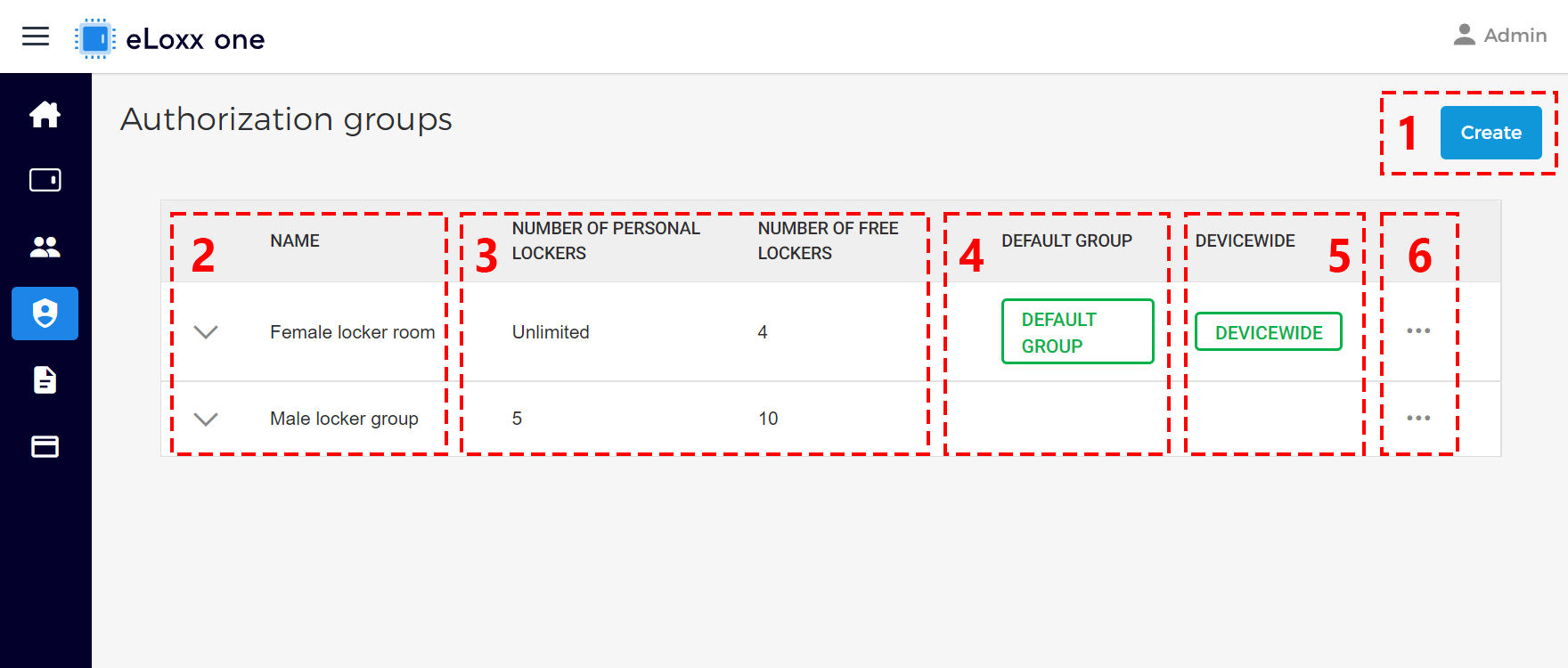
Create:
Click on this button to create a new authorization group. For instructions on this process, see “Defining authorization groups for locker users”.
Name of the group:
The names of all defined authorization groups are listed here. By clicking on the name of a group, the group information page opens where you can, e.g., edit the group details and assign locker users to the group, etc.
Number of lockers:
The maximum number of lockers for each locker mode that the users of the authorization group are allowed to use are shown here.
Default group:
When an authorization group is set as a default group, every new user will automatically be assigned to this authorization group.
Device wide:
When an authorization group is set as a device-wide group, all locker groups controlled by the GC7 controller can be accessed.
Edit/Delete:
Click on the settings icon of the respective group to edit or delete the group.