5.5. Disabling and enabling lockers
Notice
These actions can also be scheduled to occur automatically. See "Creating an automatic locker action" for instructions.
Locate the locker on the "Locker view" page.
Click on the settings icon of the respective locker and select “Disable locker” from the “Actions” menu.
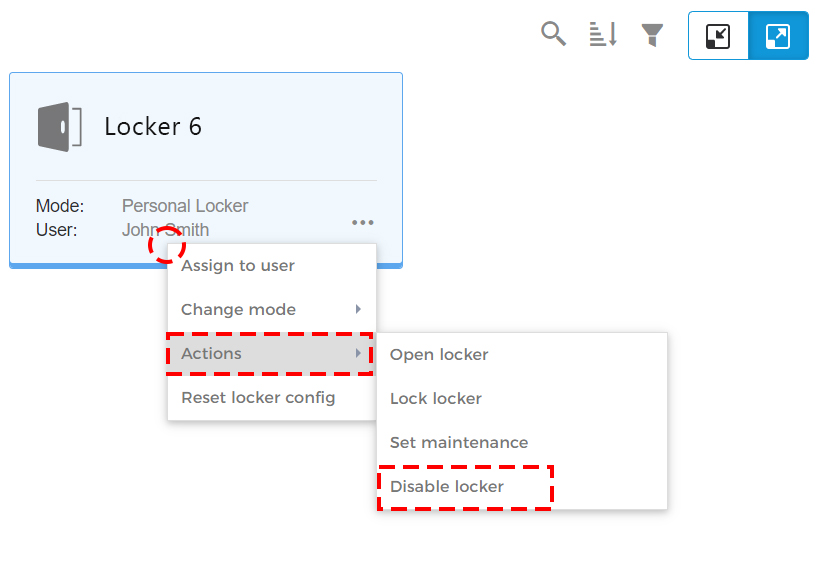
↪ The confirmation window opens.
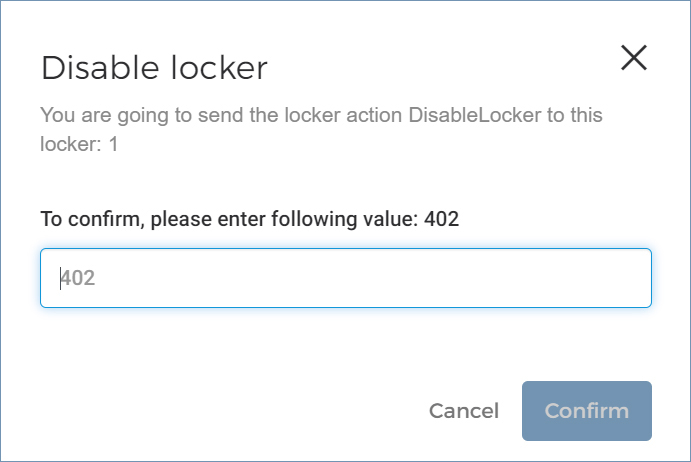
Enter the displayed code number to complete the action.
↪ The locker is disabled and displayed in orange to indicate out of service. It can no longer be used until it is reactivated.
To enable a disabled locker, follow the same instructions as described for disabling it. Instead of “Disable Locker”, the “Enable Locker” button is displayed.
Notice
Enabling a locker may also be necessary after an alarm. After acknowledging a locker alarm, it is deactivated and must be reactivated before it can be used again.