5.6. Using maintenance mode
Maintenance mode can be used to temporarily disable a locker so that it cannot be used. This can be useful, e.g., if the locker must be cleaned before it is used again or if a technical check is required.
Notice
You can also schedule maintenance mode to be enabled or disabled automatically. See "Creating an automatic locker action" for instructions.
Enabling maintenance mode
Locate the locker on the "Locker view" page.
Click on the settings icon of the respective locker and select "Set maintenance" from the "Actions" menu.
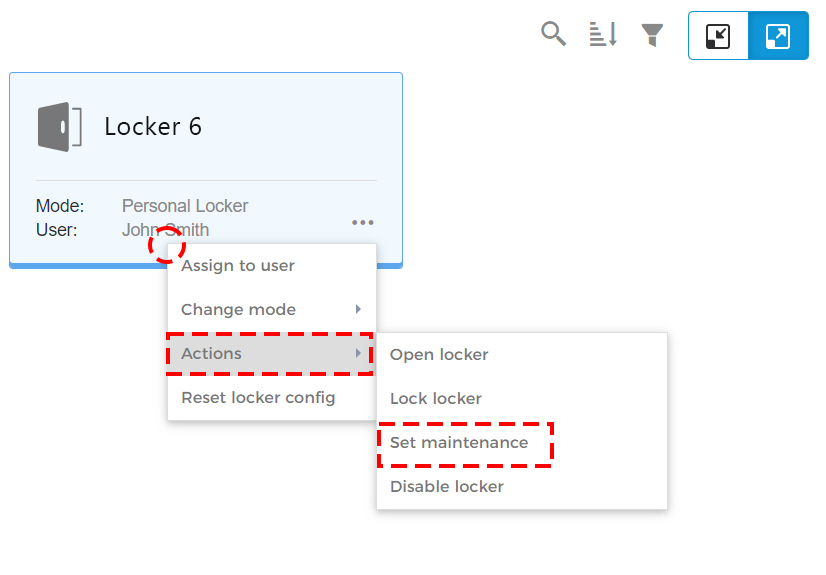
↪ The confirmation window opens.
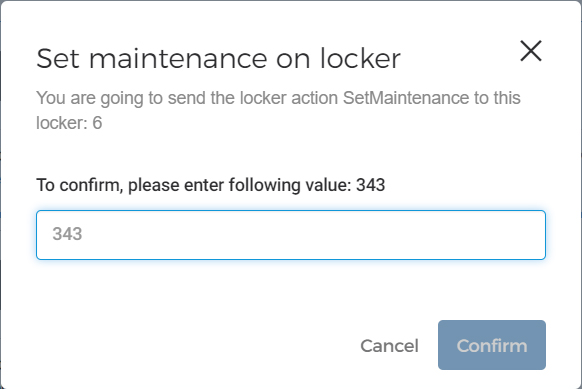
Enter the displayed code number to complete the action.
↪ The locker is disabled and set to maintenance mode.
Indication of maintenance mode
Lockers in maintenance mode are displayed in eLoxx one in different ways. The possibilities are ...
...
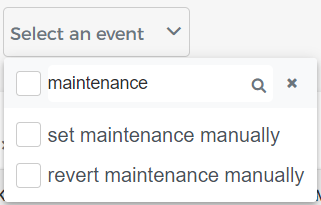 on the "Logs" page by selecting a maintenance event.
...
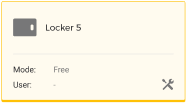 on the "Locker view" page via an icon at the bottom right.
...
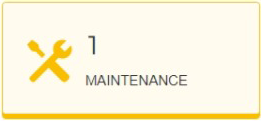 on the "Dashboard" page via this field.
The maintenance staff can then check and clean the locker and prepare it for further use.
Disabling maintenance mode
Click on the settings icon of the respective locker and select "Revert maintenance" from the "Actions" menu.
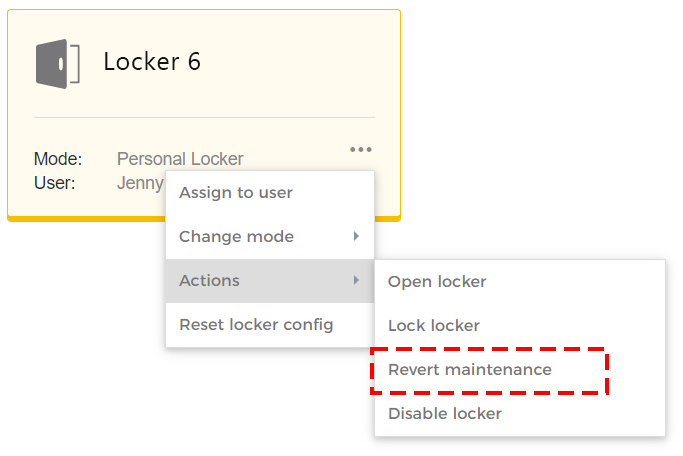
Enter the displayed code number into the confirmation window to complete the action.
↪ The locker is reset to its previous operating mode.