5.10. Adding Locker users via CSV file
New locker users are added to the system and managed via the "Locker users" page. Here you can select to manually enter the details for a single user or to import the data of multiple users via CSV file.
Open the "Locker users" page.
↪ If no lockers users have been added yet, the following screen is displayed.
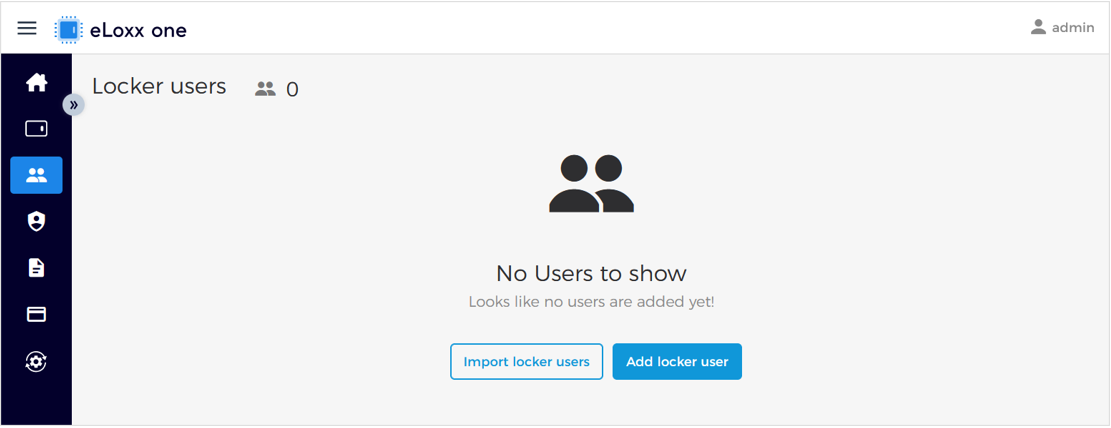
To add a single locker user, click on "Add locker user". See chapter "Adding locker user manually" for instructions.
To add multiple locker users via CSF file, click on "Import locker users".
↪ The window for step 1 is displayed.
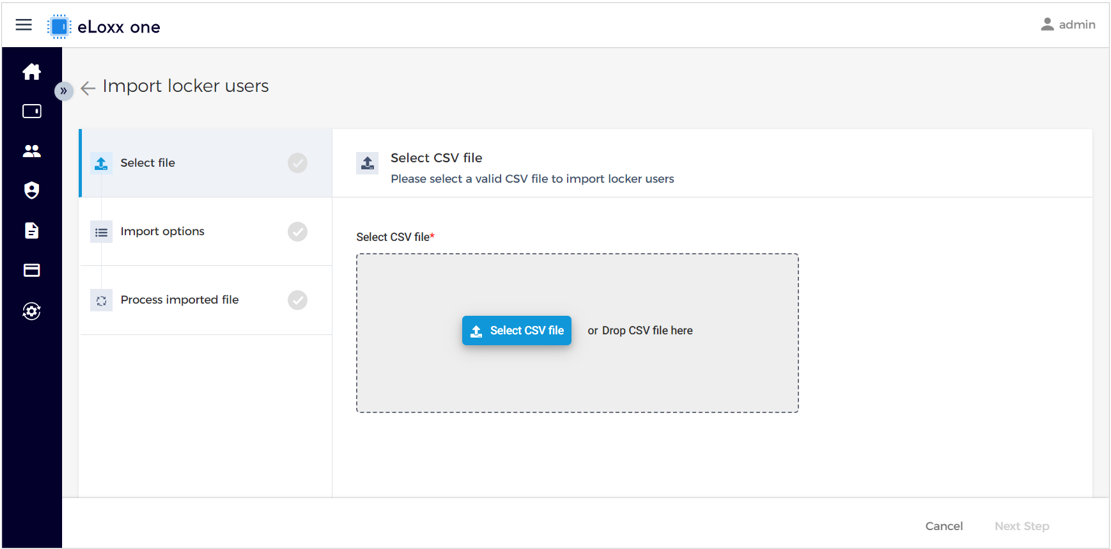
Add a valid CSV file via drag and drop or via File Explorer by clicking on "Import CSV file". A valid CSV file is indicated by a green tick symbol next to step 1 after uploading.
NOTE! Requirements for the CSV file:
An example of the data columns and data that the CSV file may contain is as follows:
UserID
Name
FirstName
IsEnabled
Comment
CardUID
...
1
Smith
John
true
VIP
12345678
...
...
ValidFrom
ValidUntil
Description
LockerGroup
Locker
AuthorizationGroup
...
CEO
Building 1
78
Group 1
All data columns must be written exactly as defined above (case sensitive and without spaces).
Only the "UserID" column is mandatory; all other data columns are optional.
The "UserID" is the unique ID to identify a locker user. The "UserID" is required in every row of the import file to identify the user and link them to the other data of the file
Format of UserID: decimal
An error message is displayed if the "UserID" is empty or not a number.
A warning message is displayed, if any of the "UserID" numbers of the CSV file are already assigned to a locker user in eLoxx one. In this case, a messsge is displayed to confirm whether all the manually created users should be updated or deleted according to the import options.
If the "ValidFrom" and "ValidUntil" columns are empty, unlimited validity is active.
If the optional data columns are included in the CSV file, these will be added to the eLoxx one database. If the optional data columns are empty (or invalid) and the database ha no corresponding data, the default values will be added to the eLoxx one database. If the CSV file includes valid optional data and there are corresponding data in the database, the database will be updated with the new values.
Click on "Next Step".
↪ The window for step 2 is displayed.
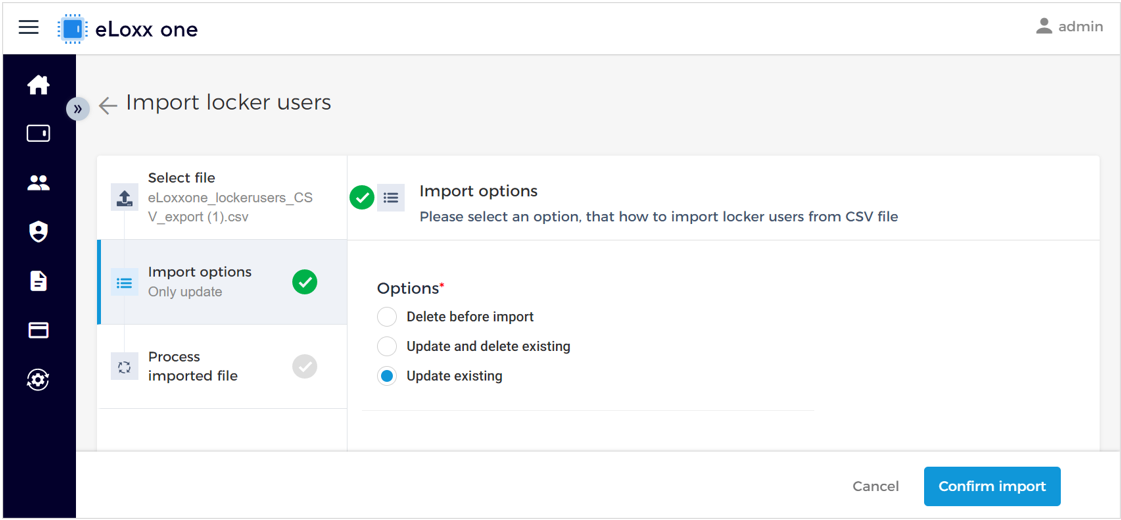
Select one of the following import options:
Delete before import:
Before the import is executed, all users and their assigned authorizations in the eLoxx one database are deleted.
NOTE! All users previously created manually in eLoxx one are deleted with this option!
Update and delete existing:
Selecting this option will update the eLoxx one database based on the data contained in the CSV file. If a locker user is no longer included in the CSV file, the user and their data will be deleted from the eLoxx one database.
NOTE! All users previously created manually in eLoxx one are deleted, if there is no corresponding UserID in the CSV file!
Changes to the user data in the CSV file (i.e., Name, FirstName, IsEnabled, Comment, CardUID, ValidFrom / ValidUntil) will be transferred to the database. If there are no locker or authorization group assignments in the CSV file, the current data in the database will be kept. If there are assignment data in the CSV file, the data in the database will be overwritten with the imported data.
Update existing:
Selecting this option will update the eLoxx one database based on the new data contained in the CSV file. However, if a locker user is no longer included in the CSV file, the user and their data will remain in the database.
NOTE! No users are deleted with this option.
Changes to the user data in the CSV file (i.e., Name, FirstName, IsEnabled, Comment, CardUID, ValidFrom / ValidUntil) will be transferred to the database.
If there are no locker or authorization group assignments in the CSV file, the current data in the database will be kept. If there are assignment data in the CSV file, the data in the database will be overwritten with the imported data.
Click on "Confirm import".
↪ The processing window is displayed.
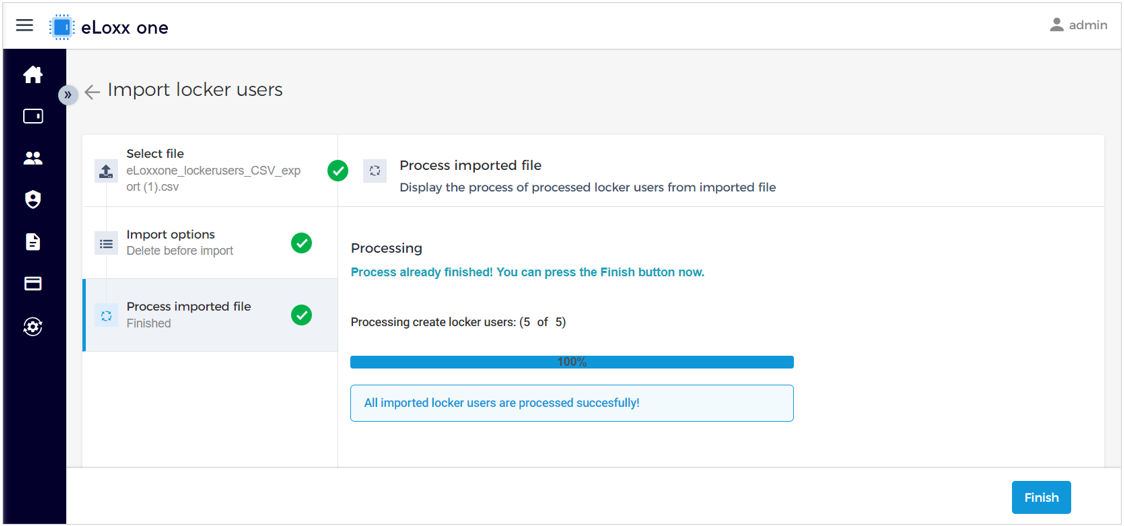
After the imported file has been processed (green tick), click on "Finish".
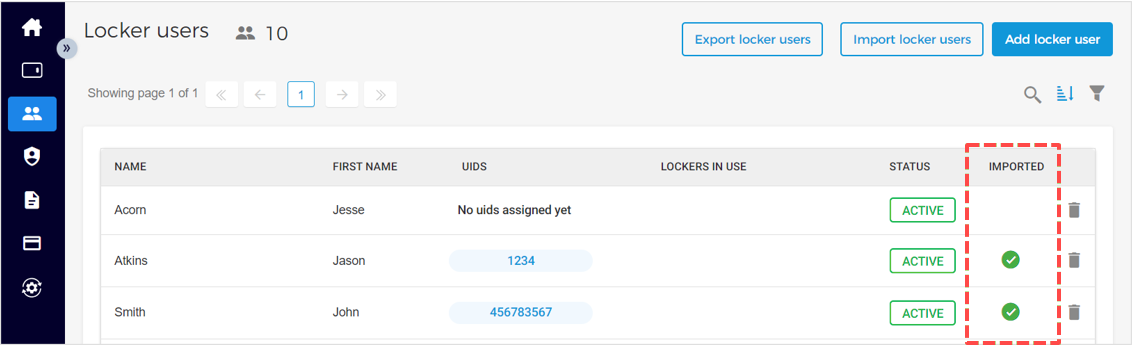
↪ The imported locker users are displayed on the "Locker users" page. A green tick in the "IMPORTED" column indicates that the locker user was added via CSV file.
Notice
Click on "Export locker users" to export all current locker users and their data from the eLoxx one database to a CSV file.