3.1.1. License Activation in G7 Connect
Notice
Registration is required to begin using G7 Connect. See the G7 Connect manual for a full description on registering and using G7 Connect.
Open a web browser and enter the following URL into the address bar:
Confirm with "Enter".
The G7 Connect login screen is displayed.
Enter your username and password for G7 Connect and confirm using two-factor authentication (if enabled).
The dashboard of G7 Connect is displayed.
Open the "Devices" page of the project that your GC7 controller is assigned to.
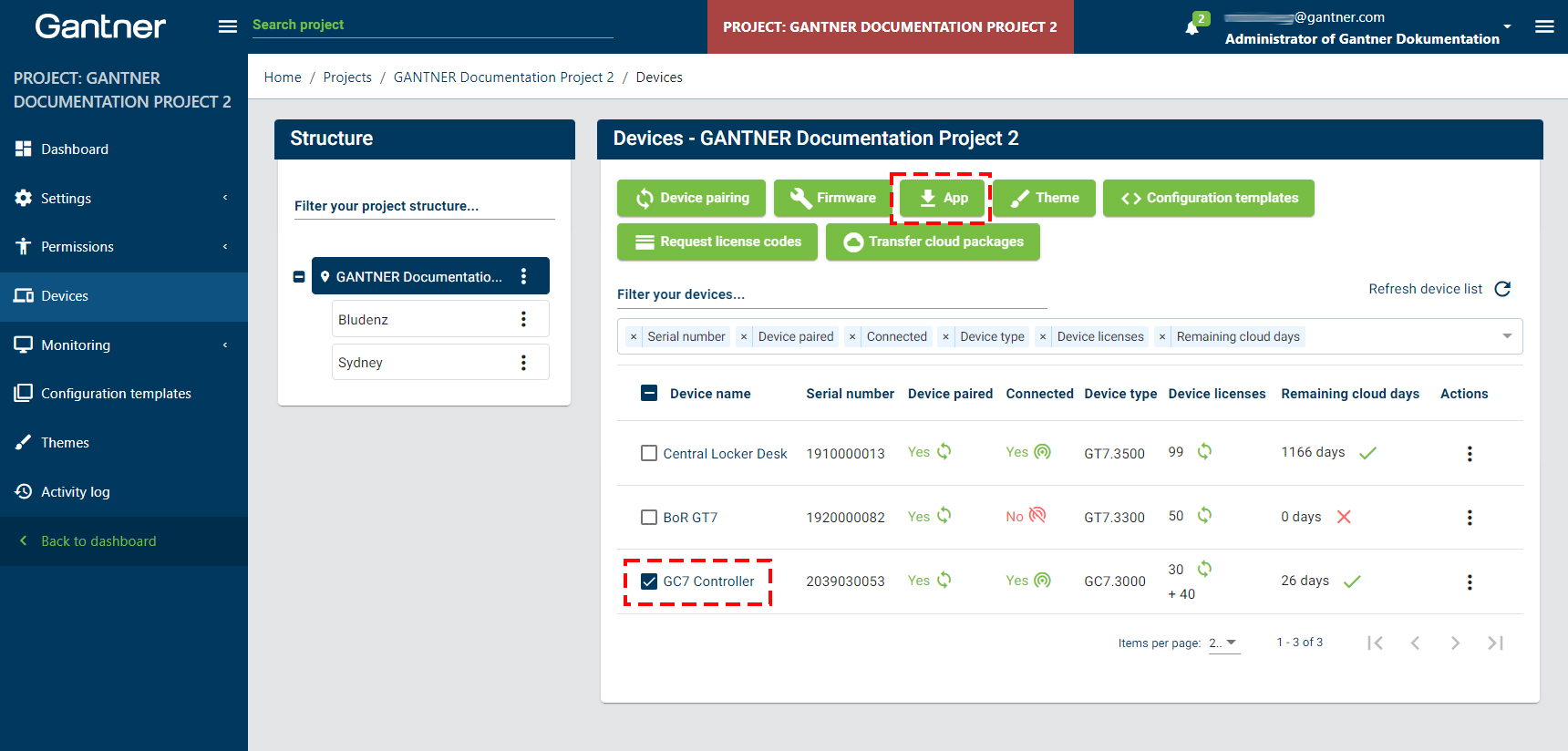
Mark the check box next to the device name of your GC7 controller and then click on the “App” button.
↪ The following window opens.
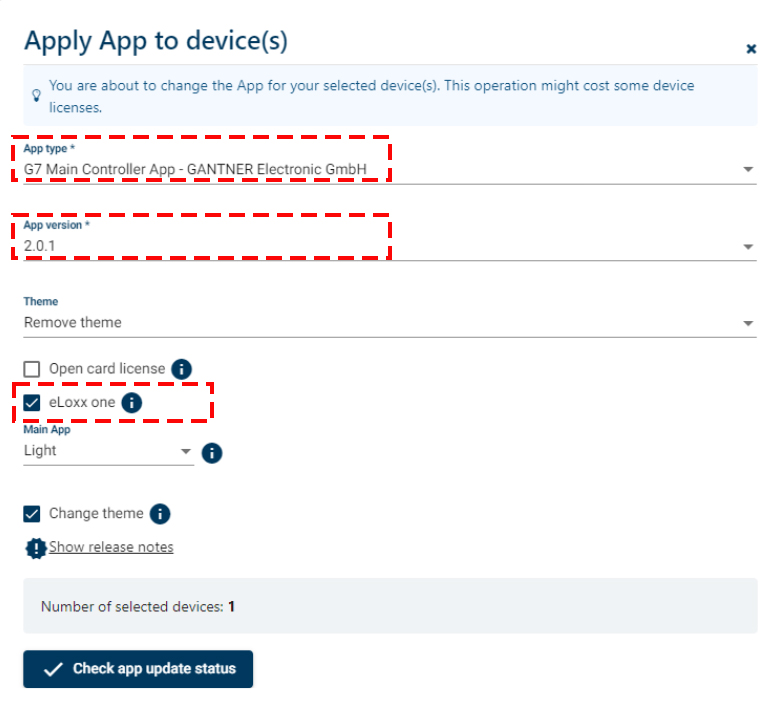
In this window, define the following settings required for the G7 Main Controller app:
App type: Select "G7 Main ControllerApp" from the menu.
App version: Select app version 2.0 or a later version from the menu.
eLoxx one: Enable this option to activate the license for eLoxx one eLoxx one.
Note: 40 license points (also called device licenses in G7 Connect) are required for each GC7 controller to activate eLoxx one. The required device licenses must be available in the project that the GC7 controller is assigned to before completing this process. Information on the device licenses is provided in the main area of G7 Connect under “Licenses” -> “Device licenses”. Speak to your GANTNER representative about ordering more device licenses if necessary.
Click on "Check app update status".
↪ A summary of the device licenses required is displayed at the bottom of the “App” window. Also shown here is whether a firmware update is required to install the app. If there are insufficient device licenses or a firmware update is required, these requirements must be met before the app can be installed.
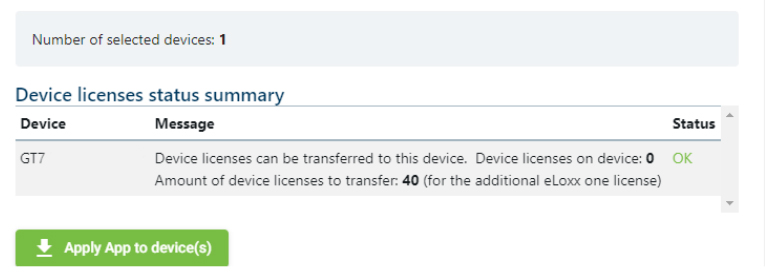
Click on "Apply App to device(s)" to complete the process.
↪ Device licenses and the app are loaded to the GC7, which now operates as per the functionality of the G7 Main Controller App.
If your GC7 controller does not have an active connection to G7 Connect, the license code can be displayed after selecting the desired app (e.g., license code for 40 points for the G7 Main Controller App). This license code can then be entered into the GC7 web interface. Therefore in G7 Connect click on "Request license codes".
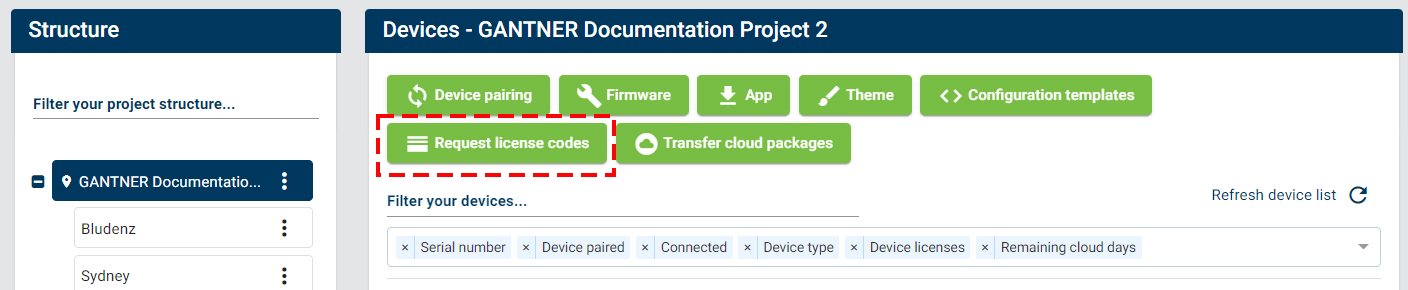
Select the G7 Main Controller App and copy the displayed license code.
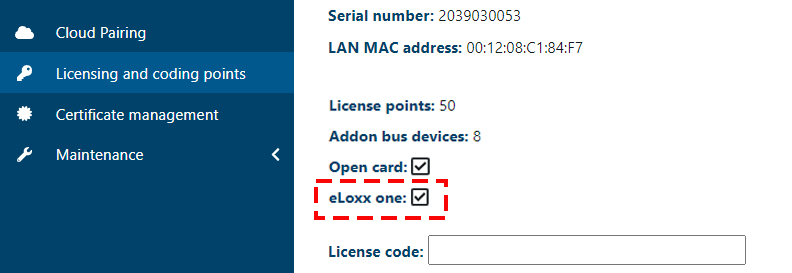
Open the "Licensing and coding points" page on the GC7 web interface.
↪ The following window is displayed.
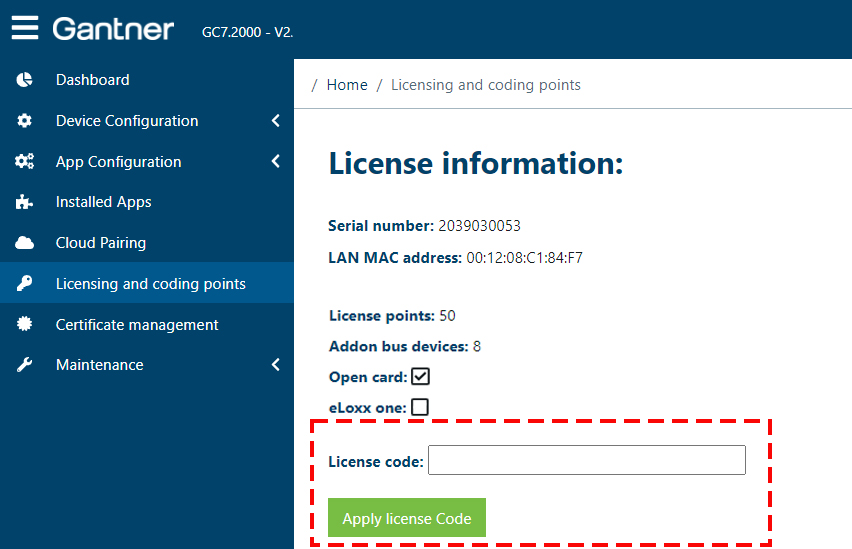
Enter the license code into the “License code” field and then click on “Apply license code”.
↪ The license code is checked and activated if valid. An activated license is indicated by a tick in the “eLoxx one” box.