4.4. Locker View
 |
On the “Locker view” page, each locker in the system and its current status are displayed, and certain locker actions can also be executed.
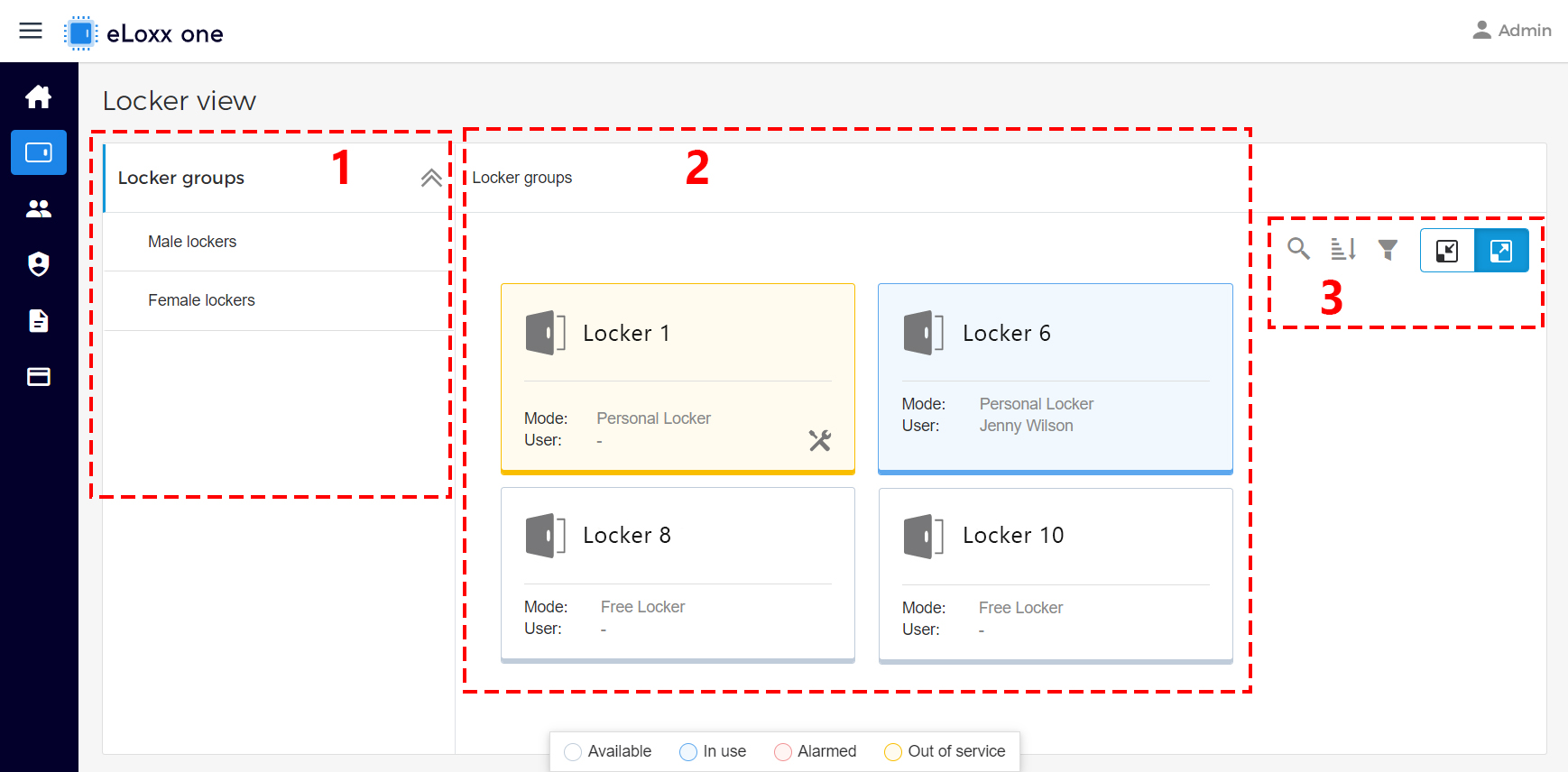
Locker groups, areas:
All lockers in a system are assigned to locker groups and subgroups in eLoxx one. The groups are shown in the directory tree on the left. Click on a locker group to display the assigned lockers. When you click on a locker group that has subgroups assigned to it, the lockers of the subordinate groups are also displayed.
Lockers:
All lockers of the selected locker group are displayed here. The locker mode is displayed for each locker (see “What is the difference between the locker modes?” for more information).
The door status of each locker is indicated via an icon in the locker field:
 ... Locker is open.
 ... Locker is closed.
 ... Locker is locked.
 ... Status unknown.
In addition, the locker status is displayed in color (also refer to the legend at the bottom of the window).
 ... Locker is available and can be used.
 ... Locker is in use.
 ... An alarm has been triggered at the locker.
 ... The locker is not in operation (e.g., maintenance).
Search / Sort / Filter:
These options allow you to search the list for locker numbers
 , sort the list in ascending or descending order
  , or set a filter or filters to display only specific lockers, e.g., available lockers
  .
.