5.12.2. Assigning lockers via the "Locker view" page
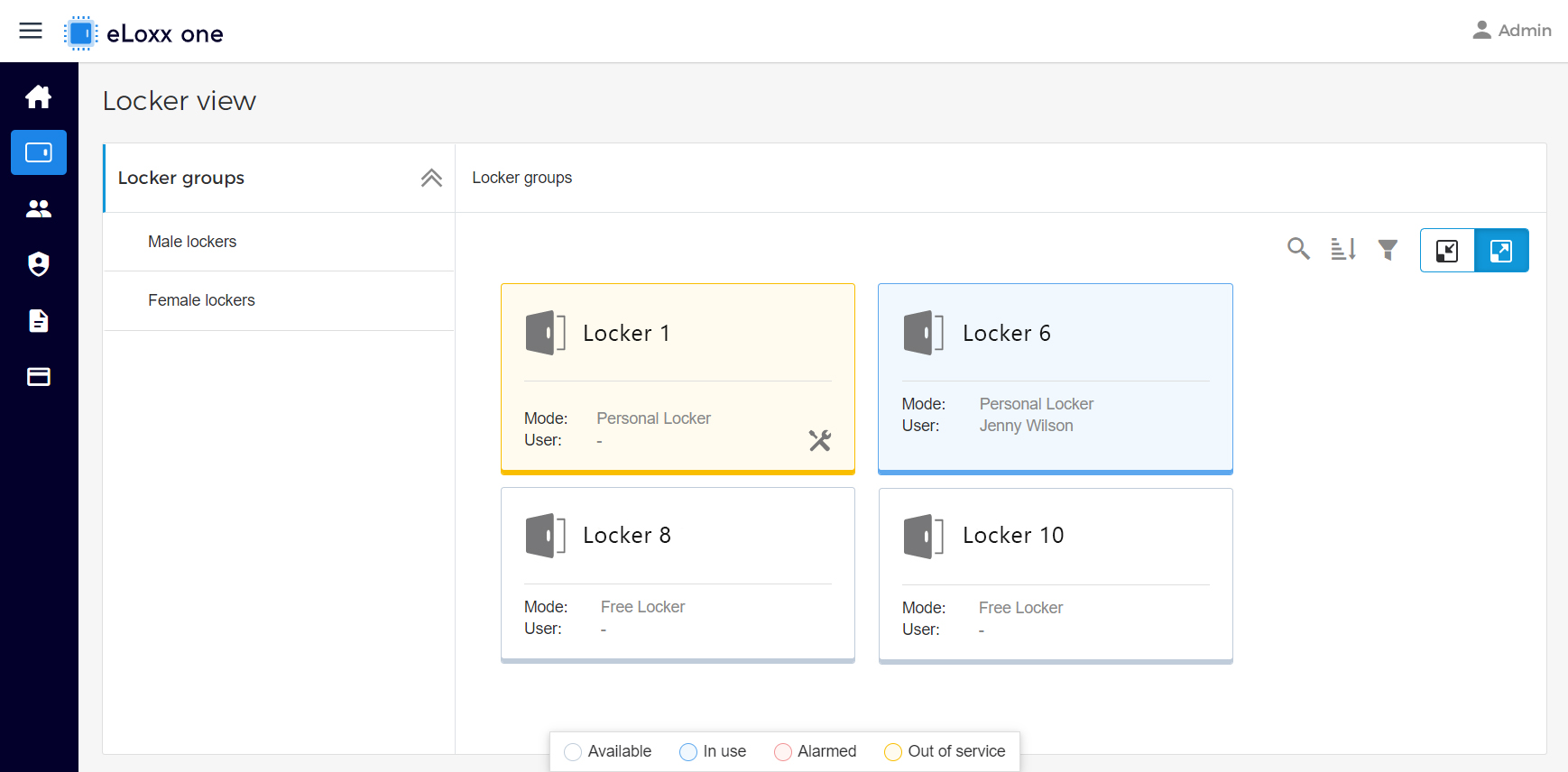
Open the "Locker view" page.
Notice
The mode for each locker is displayed here. In order to be assigned to locker user(s), the locker must be operating in personal locker mode. See chapter “Configuring the Locker Mode” for instructions.
Click on the settings icon of the respective locker and select "Assign to user" from the "Actions" menu.
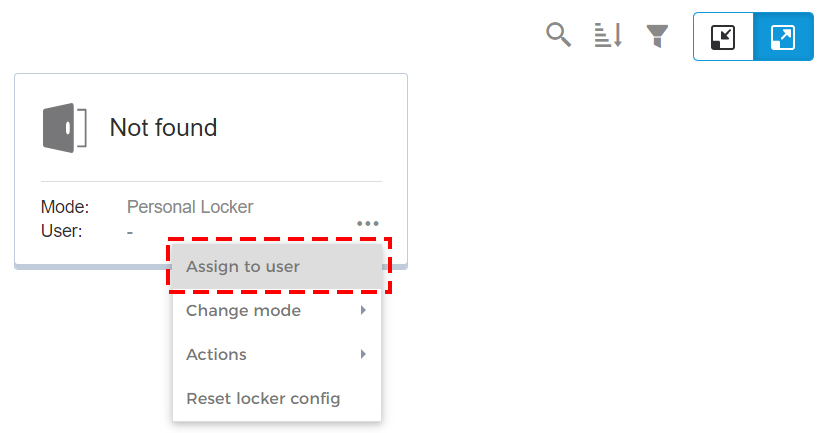
↪ The “Assign user” window opens in which all available locker users are displayed.
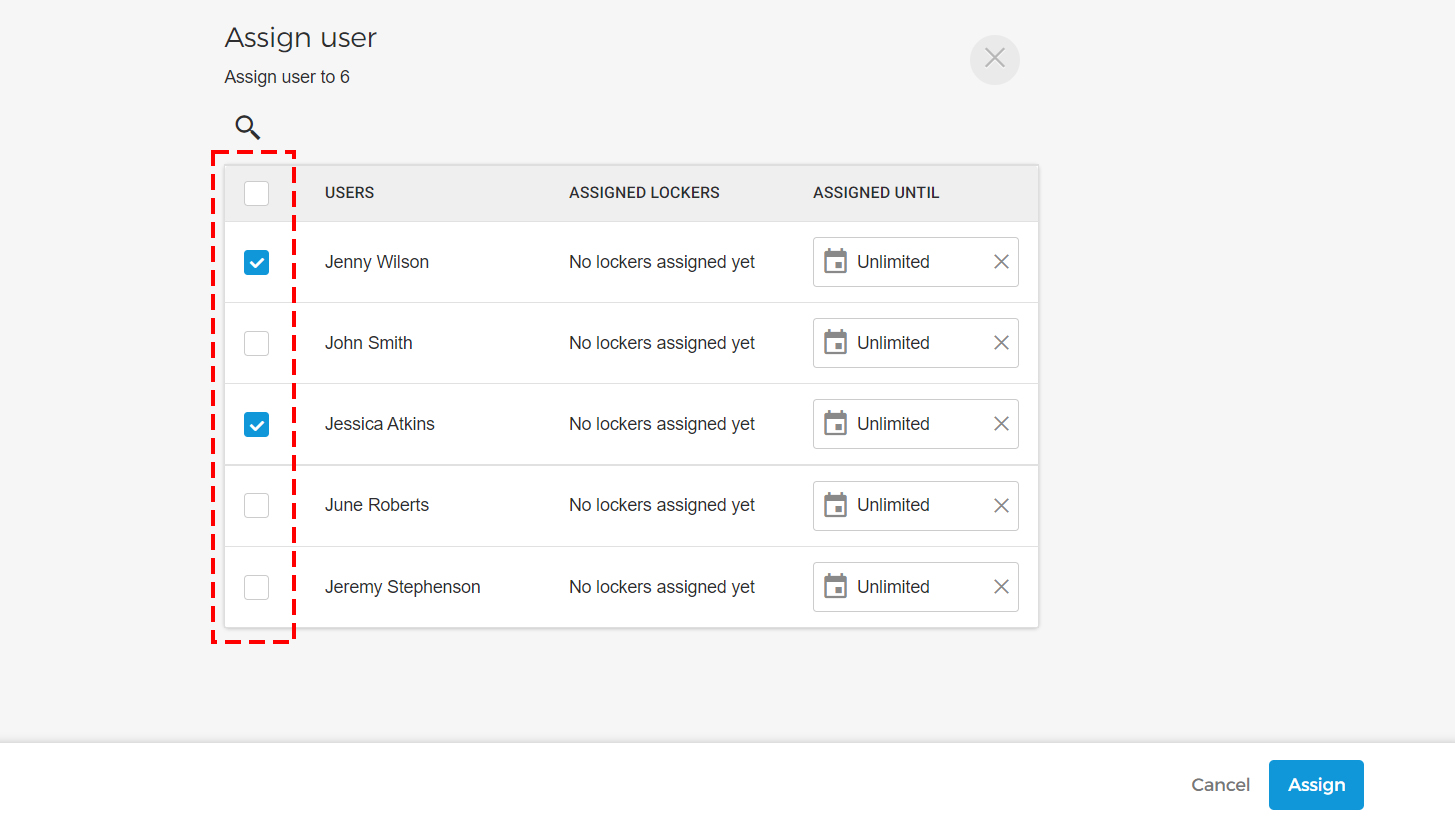
Select the locker user(s) to assign to the locker and define a validity period for locker use if desired.
Confirm by clicking on "Assign".
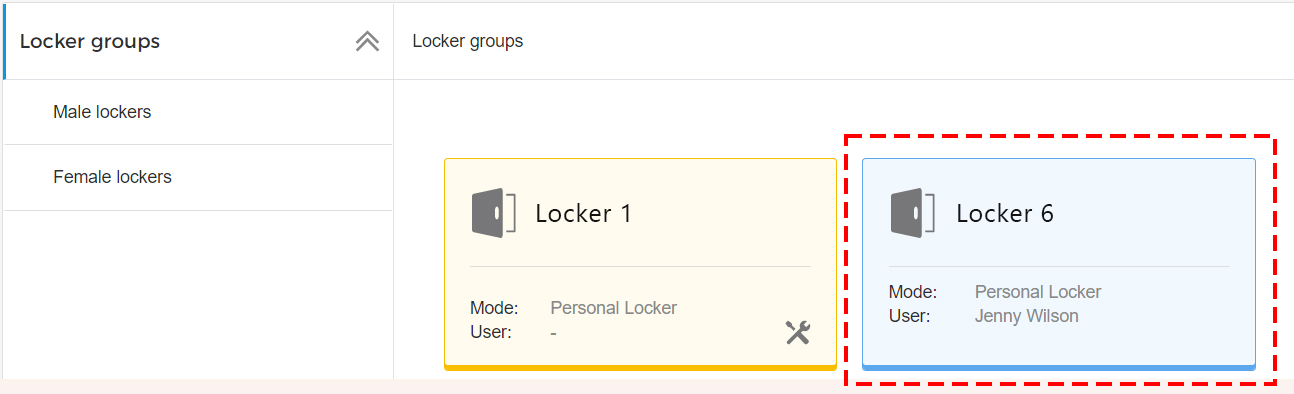
The locker is displayed on the “Locker view” page with a blue background and the name(s) of the assigned user(s).